Hardware Required for ZloyRouter
If any hardware is out of stock, check for similar alternatives.
Raspberry Pi 4/5 with 2/4GB RAM
ZloyRouter is a hardware and software complex that uses Raspberry Pi 4/5 as its platform.
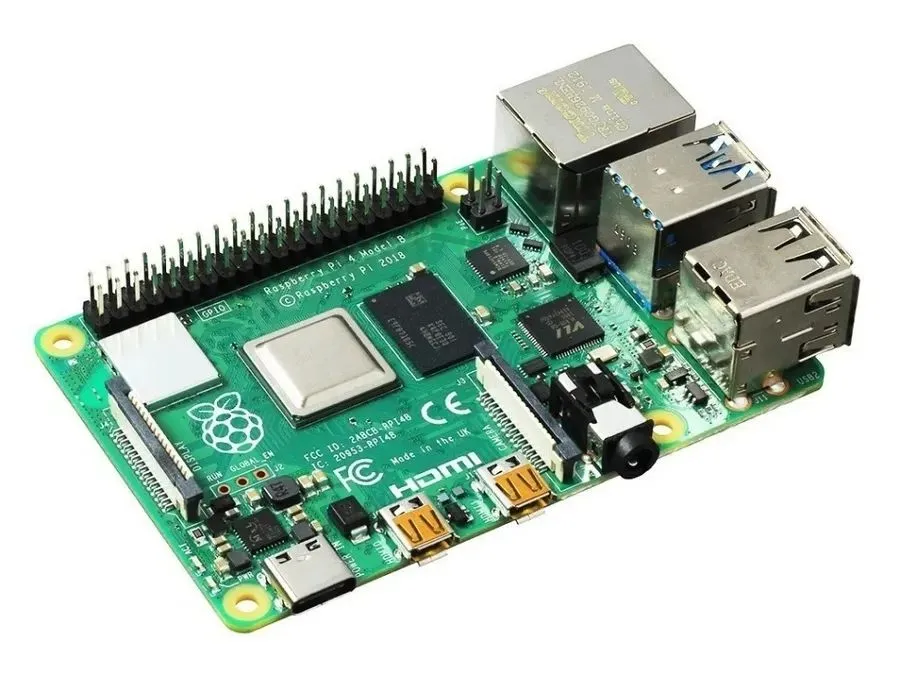
We do not sell hardware. You can purchase a Raspberry Pi 4 using the marketplace links below:
2GB RAM version on OZON / AMAZON
ZloyRouter has low resource requirements, but strategically it is better to purchase the 4GB RAM version on OZON / AMAZON
If the product is unavailable at the provided links, look for any similar item from the recommendations.
Raspberry Heatsink
Heatsink case on OZON / AMAZON
Raspberry Power Supply
Memory Card for Raspberry Pi
The card packaging must have the following markings:
- Class A1 or A2 (Application Performance Class): This is the most important parameter! Class A1 guarantees a minimum of 1500 read and 500 write operations per second (IOPS). Class A2 — 4000 read and 2000 write.
- Class 10 or U1 / U3: Guarantees minimum overall speed.
You cannot use anything below Class 10 for the OS!
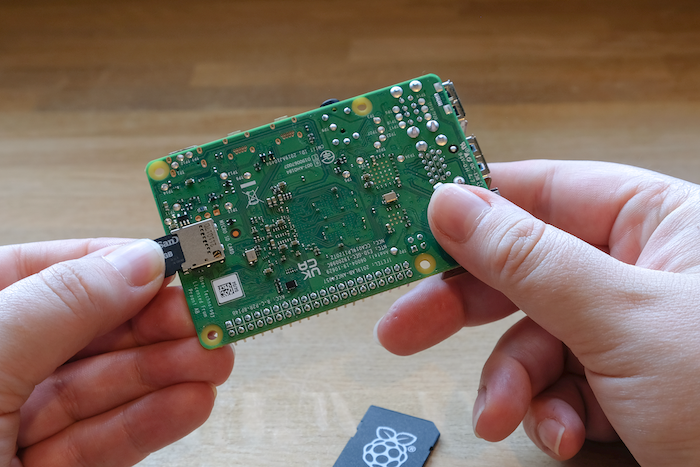
Recommended memory cards (64GB and above):
- Samsung PRO Endurance on OZON | AMAZON
- SanDisk High Endurance / SanDisk MAX Endurance on OZON | AMAZON
- Kingston High Endurance on OZON | AMAZON
Card Reader
USB Card Reader on OZON
Connection Cable (as much as needed)
UTP Cable (patch cord) on OZON
First Boot:
- Connect the Raspberry Pi with a cable to the router that distributes the internet.
- Install the operating system and ZloyRouter on the Raspberry Pi following the instructions
- After powering on and configuring, ZloyRouter will start broadcasting a Wi-Fi network named
Zloyfrom the Raspberry Pi with the correct DNS settings, which you can already connect to and work with.
Proper Handling of Raspberry Pi to Avoid Damage
Important: Do not turn off the Raspberry Pi by unplugging it from the power source (pulling it out of the socket), as this can damage the microSD memory card. ZloyRouter (like any other software) cannot physically damage your device under any circumstances.
1. Safe Shutdown (Software)
The most correct way to turn off the Raspberry Pi is through system commands: sudo shutdown -h now or sudo halt.
2. Wake up (Hardware)
If the Raspberry Pi was safely shut down via the system (shutdown command) but the power supply is still plugged into the socket (red LED is on), shortly bridging Pin 5 (GPIO 3) and Pin 6 (GND) will wake up the board, and it will start booting.
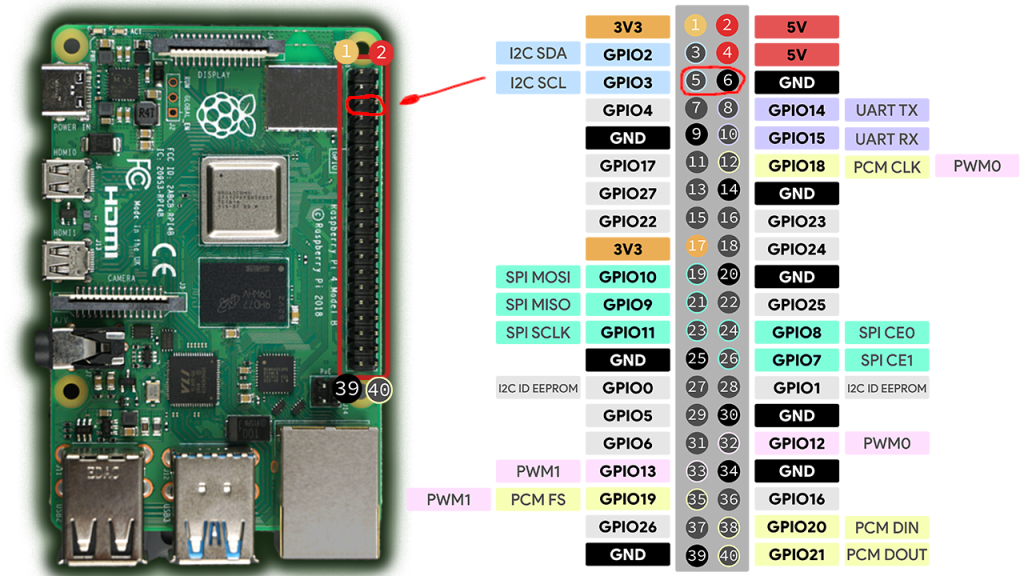
3. Safe Shutdown (Hardware) — requires a one-line setup
It is intentionally designed so that "out of the box" an accidental pin shorting does not lead to data loss and abrupt shutdown. Therefore, by default, the OS does not monitor these pins.
However, the system has a built-in official feature that allows using these same pins for safe shutdown:
- Open the configuration file with the command:
sudo nano /boot/firmware/config.txt - Add the following line to the very end of the file:
dtoverlay=gpio-shutdown
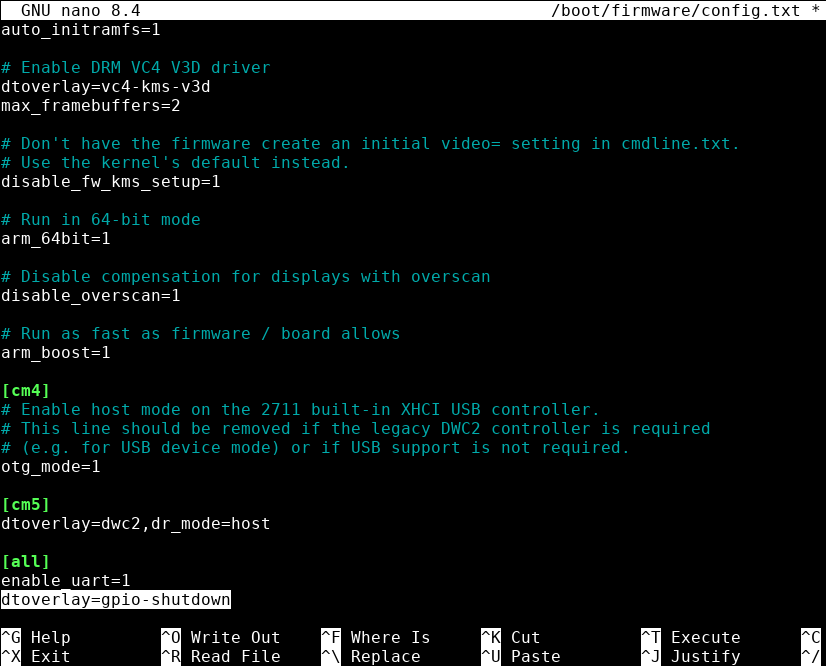
- Save your changes and exit nano by pressing Ctrl+X on your keyboard (you will be asked Save modified buffer?—confirm by pressing Y on your keyboard), then reboot the Raspberry Pi using
sudo reboot.
After this, shortly bridging Pin 5 and Pin 6 will send a command to the operating system to safely close all programs and park the file system (analogous to the power button on a PC case).
As a result, Pin 5 (GPIO 3) and Pin 6 (GND) will act as a single On/Off button.
How to Determine if the SD Card Has Entered the Pre-Death "Read-Only" Mode
The situation where the switch on the SD card adapter is in the "Unlocked" position (up)
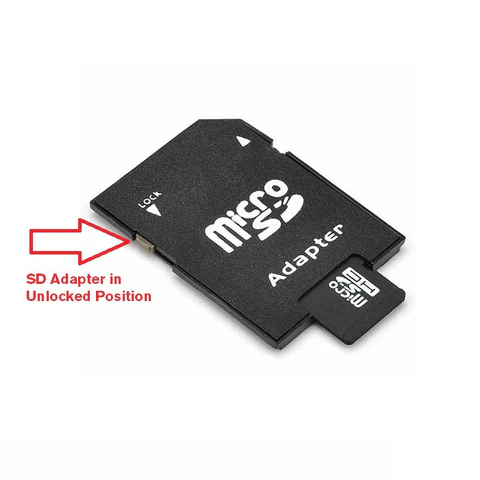
but the Raspberry Pi stubbornly reports that the "disk is write-protected" is very common.
There are 4 main reasons for this — from minor mechanical issues to the final "death" of the card itself.
1. The Card Has Exhausted Its Resource (Hardware Lock) — The most common reason for Raspberry Pi
This is the most important feature of flash memory. Inside every SD card, there is a microcontroller. When it realizes that the memory cells are worn out (the rewrite cycle limit is exhausted) or a serious internal failure has occurred, the controller permanently switches the card into "Read-Only" mode.
This is a protective mechanism: it is designed so you do not lose your data and have time to copy it to a computer before the card completely dies.
* Symptoms: The card can be read; you can copy files from it. You can even try to format it or delete files — the system will pretend it deleted everything, but after reconnecting the card, all files will be back in place.
* Solution: Unfortunately, this card cannot be fixed. It needs to be backed up and thrown away.
2. OS Software Protection Triggered (File System Errors)
If the Raspberry Pi or your computer detects critical errors in the file system (for example, the device was abruptly unplugged during file writing), the operating system may intentionally block writing.
For example, Linux (Raspberry Pi OS) mounts a disk with the ro (read-only) parameter upon detecting corruption to prevent further data destruction.
* Solution: You need to check the card for errors using the fsck utility on the problematic partition.
Summary: How to check what exactly happened?
- Insert the card into another card reader (preferably directly into a USB MicroSD dongle, bypassing the SD adapter with the slider). If the lock remains — the problem is in the card itself.
- Try creating a text file on the card, and then reconnect it. If the file disappeared — your card has entered the pre-death "read-only" mode. Copy your data and buy a new one (preferably a High Endurance class, as discussed above).