Equipment required for ZloyRouter operation
Below is a list of recommended equipment tested by our users. If any equipment is out of stock, look for similar offers in the same class and price range.
Raspberry Pi4/5 with 2/4GB RAM
ZloyRouter is a hardware and software complex that uses the Raspberry Pi4/5 as a platform.

Recently, the price difference between Pi4 and Pi5 has become minimal, so we recommend choosing the Raspberry Pi5 4Gb
We do not sell equipment. You can purchase it via links to marketplaces:
Raspberry Pi 5 4Gb on OZON / AMAZON
Previous versions can be found via the following links:
Raspberry Pi4 2Gb on OZON / AMAZON
Raspberry Pi4 4Gb on OZON / AMAZON
You can also build a setup in the specialized store onpad.ru
If the product is not available at the provided links, look for any similar one from the recommendations.
Heatsink for Raspberry
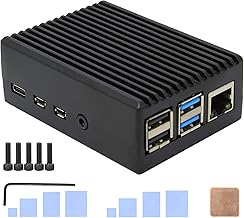
Heatsink for PI 4 OZON | AMAZON
Heatsink for PI 5 OZON | AMAZON
Raspberry Power Supply
Power supply for PI 4 on OZON| AMAZON
Power supply for PI 5 on OZON| AMAZON
Memory Card for Raspberry Pi
The card packaging must have the following markings:
- Class A1 or A2 (Application Performance Class): This is the most important parameter! Class A1 guarantees a minimum of 1500 read and 500 write operations per second (IOPS). Class A2 guarantees 4000 for reading and 2000 for writing.
- Class 10 or U1 / U3: Guarantees minimum overall speed.
You must not buy anything below Class 10 for the OS!
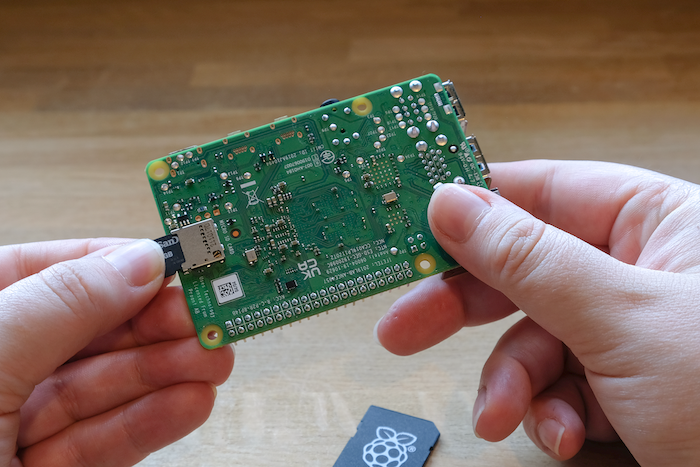
Recommended memory cards (64GB and up):
- Samsung PRO Endurance on OZON | AMAZON
- SanDisk High Endurance / SanDisk MAX Endurance on OZON | AMAZON
- Kingston High Endurance on OZON | AMAZON
Card Reader
Required for writing the OS image to the flash drive. Cheap noname card readers often kill flash drives.
We recommend using accessories from trusted manufacturers, such as: Baseus, Ugreen, Belkin
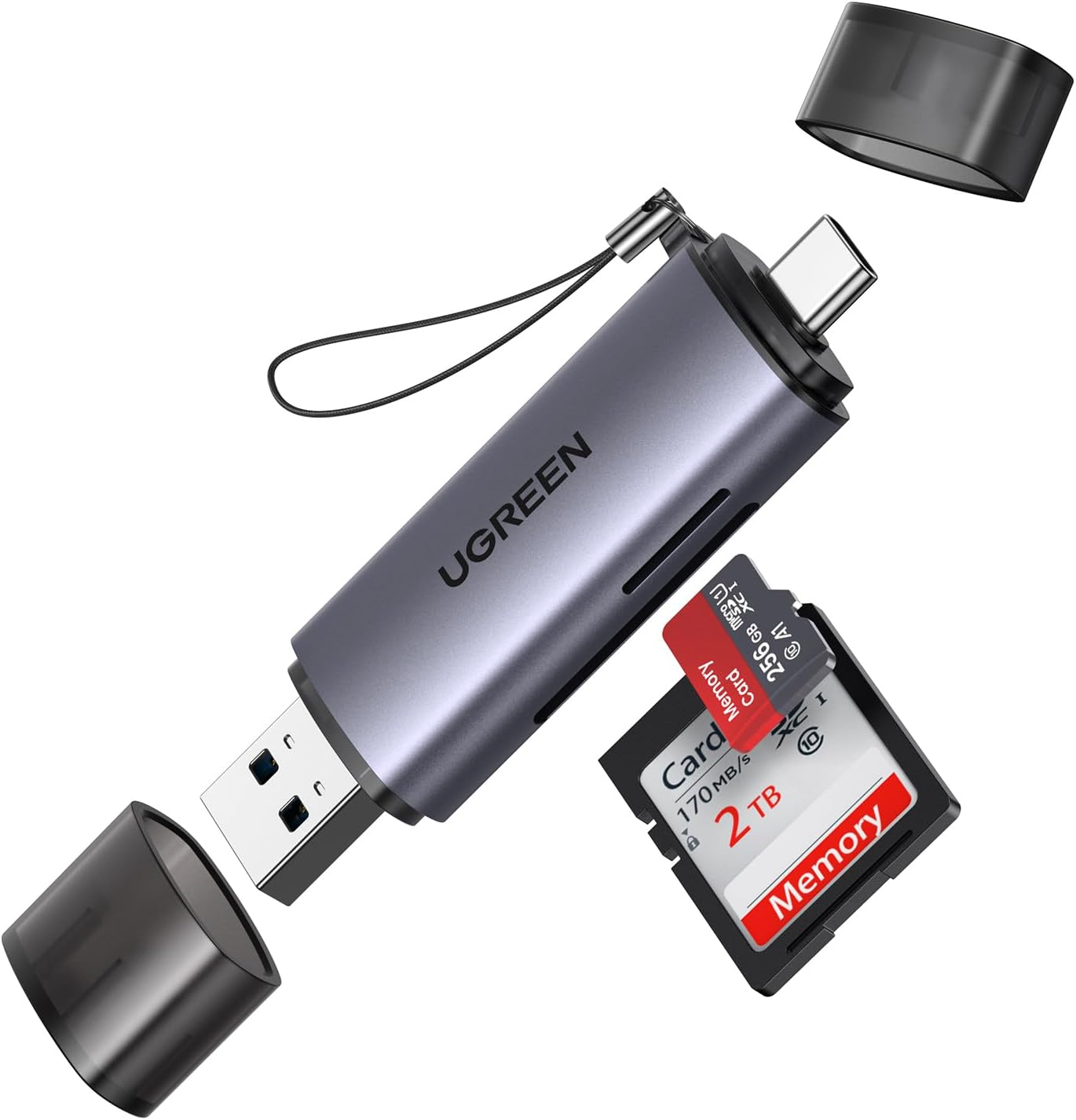
USB Card Reader on ONON | AMAZON
Due to cheap flash drives and/or a poor quality Card Reader, you may encounter an error during the installation process:
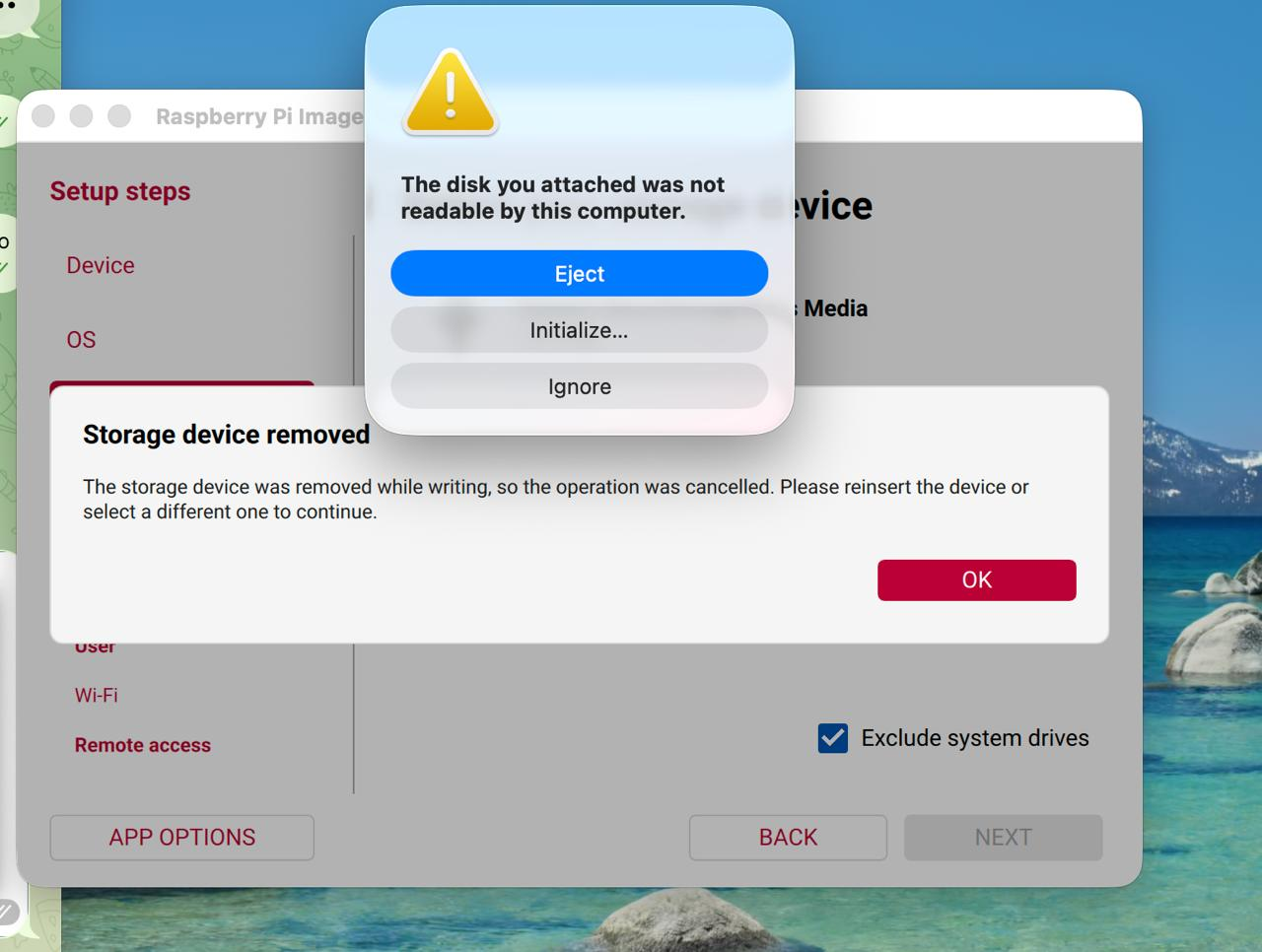
This means the flash drive disconnected during the image writing process. Or upon completion of writing, your checksum simply won't match.
*Do not skimp on small things - use high-quality flash drives and adapters.
Connection cable (as much as needed)
Required to connect the Raspberry to your router.
UTP cable (patch cord) on OZON
Ethernet network adapters (RJ45) for phones and laptops (optional)
If you plan to connect your work devices to ZloyRouter via cable (for maximum anonymity and hardware disabling of Wi-Fi/Bluetooth/GPS on the phone), you will need adapters. Most modern smartphones and thin laptops (including Apple devices) lack a built-in Ethernet port.
We recommend using accessories from trusted manufacturers, such as: Baseus, Ugreen, Belkin
Depending on your work device, you will need one of the following options:
1. For iPhone (up to 14 series inclusive) and older iPads (Lightning connector)
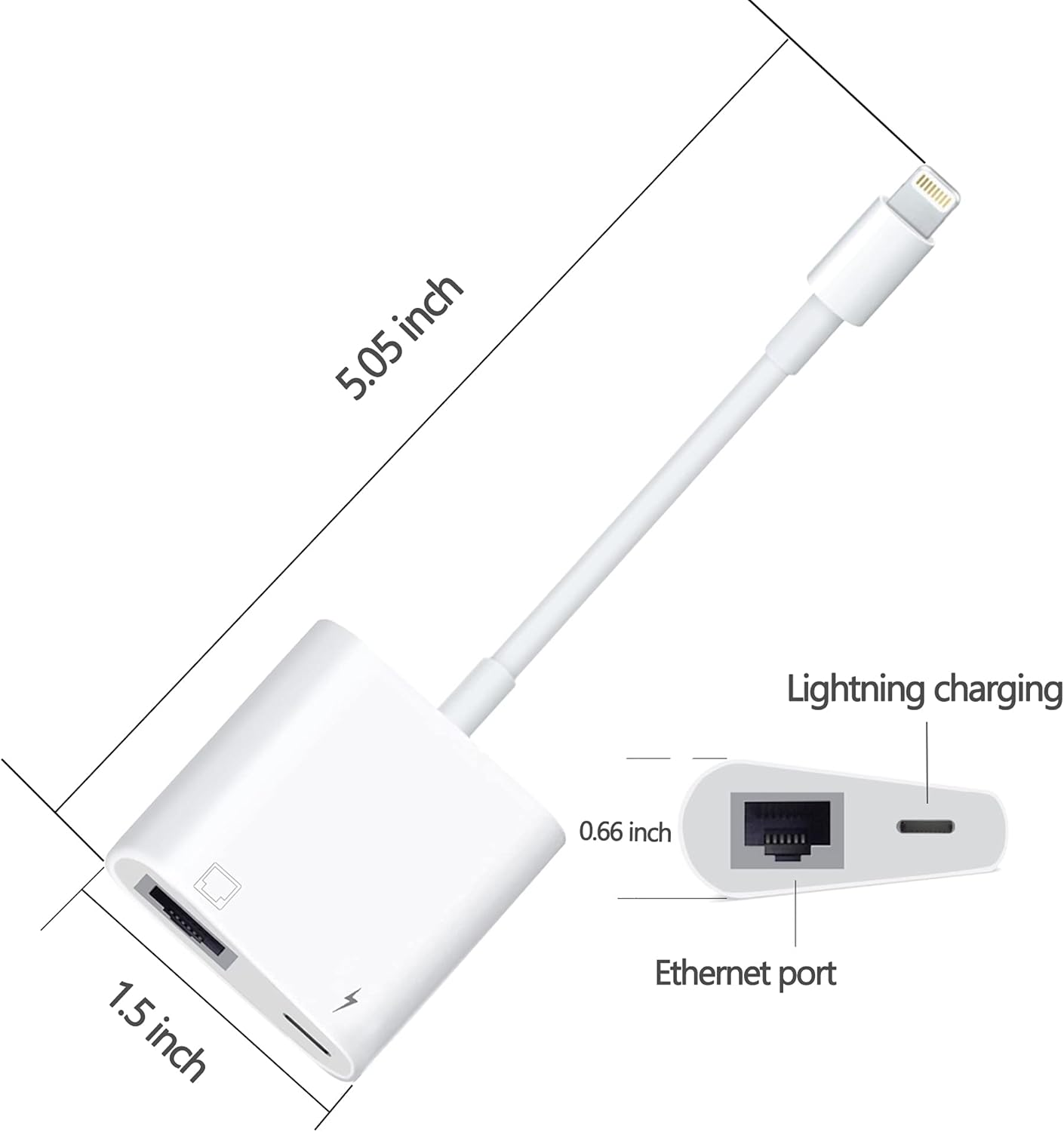
Important nuance: iOS very strictly controls power consumption. Regular adapters without external power often throw the error "Accessory consumes too much power" and disconnect.
- What to buy: Strictly adapters that, in addition to the internet cable connector (RJ45), have an additional Lightning port for connecting a charger.
- Links: Lightning to Ethernet + Power adapter on OZON | AMAZON | Apple
Alternative adapter models to search for:
- Apple USB Ethernet,
- Buffalo LUA-U2-GT
- Linksys USB200M
- Linksys USB1000
- IO-Data ETG-US2
- Belkin F5D5055
2. For iPhone 15 and newer, modern iPads, and Android smartphones (USB Type-C connector)
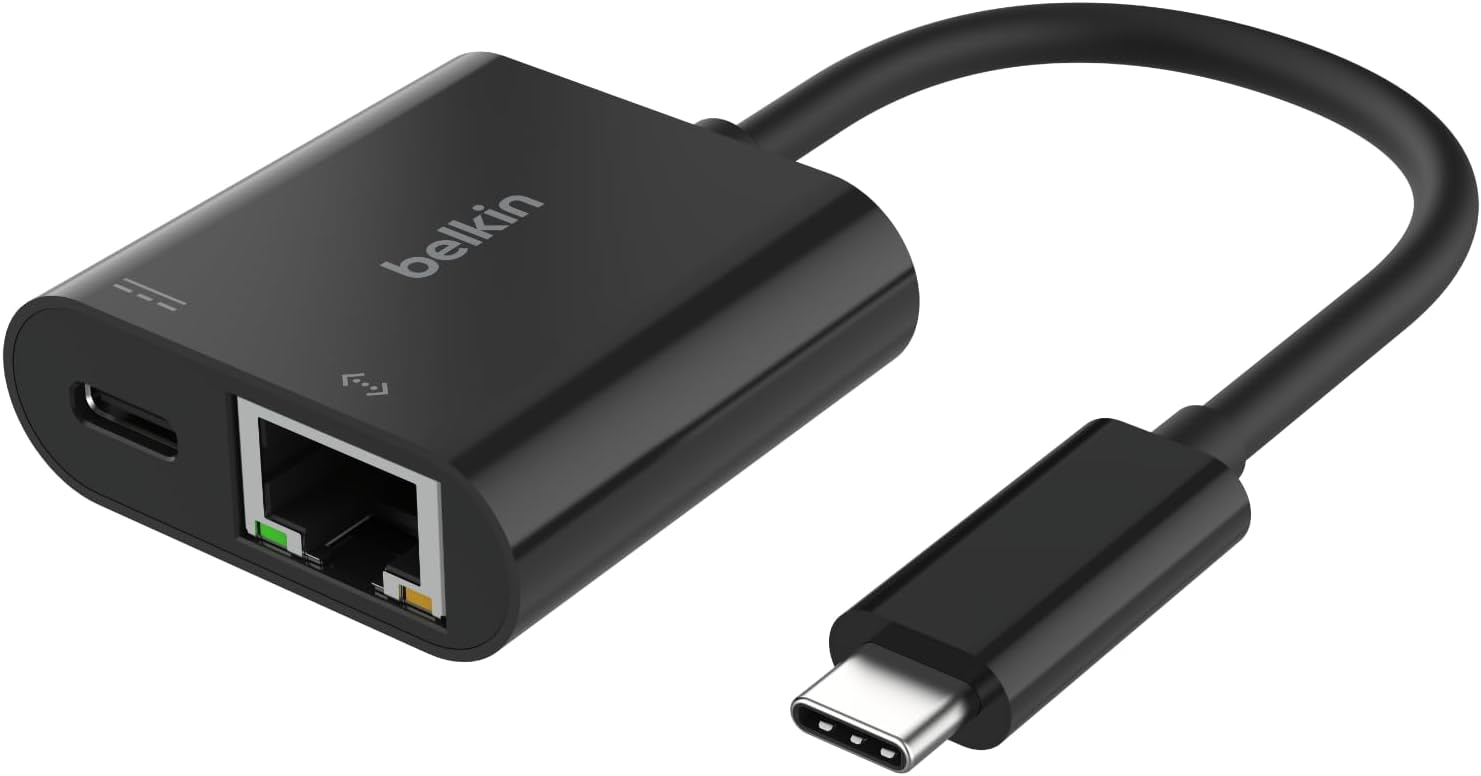
Important nuance: Starting from the 15th series, Apple (iPad, iPhone 16 Pro/Pro Max) switched to Type-C, so old Lightning adapters will not work. Android devices also operate via Type-C. The main rule here is that cabled internet heavily drains the smartphone's battery.
- What to buy: Type-C to Ethernet adapters with PD (Power Delivery) support — meaning with an additional Type-C port to charge the phone while working. For Android, it's best to choose devices from UGREEN or Baseus (they use compatible Realtek/ASIX chips that work on a Plug-and-Play basis).
- Links: Type-C to Ethernet + PD Charging adapter on OZON | AMAZON | Apple.com
3. For MacBook and modern Windows laptops (Type-C or USB-A connector)
You will need this adapter if you plan to connect your ultrabook to the internet through the Pi with ZloyRouter only via wires, without using the Wi-Fi internet sharing from the Raspberry PI (Wi-Fi HotSpot).
Important nuance: Modern MacBook Neo/Pro/Air M1, M2, M3, M4, M5 and Windows ultrabooks do not have a network cable port.
- What to buy: If you do not need to charge the laptop through the same port, the most basic and inexpensive adapter or a USB hub with a built-in RJ45 connector will do (If you also need to charge, look for a similar one but with external power). Gigabit speeds (1000 Mbps) will be more than enough.
- Links:
- Version for new laptops (Type-C) on OZON | AMAZON
- Version for old PCs (regular USB-A) on OZON | AMAZON
For more details on how to set up such connections on phones, solve issues with obtaining an IP address, and why this is necessary when working with anti-fraud systems, read the chapter "Sharing Internet to a Phone via Cable" in the Usage section.
USB Modem (optional)
If you plan to receive the internet on the Raspberry from a mobile 4G network, it will be more convenient to purchase a USB 4G modem.
graph LR
    A[🗼 4G/LTE Tower] -->|Radio channel| B[📶 USB 4G modem]
    B -->|USB port| C(🍓 Raspberry Pi <br> ZloyRouter)
    C -->|Wi-Fi or Cable| D[💻 PC / Laptop]

    classDef zloy fill:#e74c3c,stroke:#c0392b,stroke-width:2px,color:#fff;
    class C zloy;
This is much more convenient than sharing the internet from a phone and configuring routing.
We recommend choosing a USB 4G modem with Wi-Fi sharing, as this will significantly simplify the initial setup of the Raspberry Pi:
1. ZTE F30 Pro 4G Pocket WiFi
An excellent tested option is the ZTE F30 Pro 4G Pocket WiFi, which is detected in the Raspberry as a network card and immediately provides it with internet.
Moreover, this modem can share Wi-Fi - you can connect through it to the Raspberry Pi for the initial installation and setup of ZloyRouter. Since the modem acts as a router with DHCP and assigns IP addresses, your devices end up in the same network: typically the modem has the address 192.168.0.1, your Raspberry Pi is assigned the IP address 192.168.0.2, and your PC gets 192.168.0.3.
- Where to buy in the Russian Federation: OZON Citilink
- Where to buy on Amazon: Very widely available. Search for "ZTE F30 Pro 4G Pocket WiFi" or use the direct link to an analog.
2. Huawei E3372 (modifications E3372h-153 or E3372h-320)
This is the most popular modem in the Raspberry Pi community. There is a huge amount of instructions for it, and in 99% of cases, it starts working immediately after connection.
- Where to buy in the Russian Federation: Ozon, Yandex.Market, Avito. Many unlocked versions with HiLink firmware are sold.
- Where to buy on Amazon: Search for "Huawei E3372 unlocked LTE". For example, this one
Important nuance: A new version Brovi E3372-325 (Brovi is a Huawei sub-brand) has recently appeared on the market. It sometimes causes issues in Linux due to stripped-down firmware. Try to look specifically for the classic h-153 or h-320 versions.
3. ZTE MF833 (modifications MF833V or MF833U1)
Since the Huawei E3372 is gradually being phased out of production, the ZTE MF833 has become its main replacement. It also works perfectly with Linux, operates in virtual network card mode, and does not require jumping through hoops.
- Where to buy in the Russian Federation: Citilink, DNS, Ozon. Unlocked versions are sold (often in a white case without operator logos).
- Where to buy on Amazon: Very widely available. Search for "ZTE MF833V Unlocked".
3. Quectel EC25-E (in a USB adapter or via a HAT board)
Regular "dongle" modems have one drawback — during round-the-clock (24/7) operation and active data transfer, they can overheat and freeze. If you need a reliable IoT solution, it is better to get an industrial communication module inserted into a USB adapter with a case.
- How it works: The module (e.g., Quectel EC25) is inserted into a special USB adapter with a SIM card slot and antennas. In Linux, it works natively via QMI or MBIM interfaces.
- Where to buy in the Russian Federation: Electronics stores for developers (e.g., iRZ, Amperka, Supereyes), AliExpress (delivery to the RF), Ozon.
- Where to buy on Amazon: Search for "4G LTE USB Dongle with Quectel EC25" or expansion boards from Sixfab (Sixfab 3G/4G/LTE Base HAT).
Monitor (optional)
By default, all management of the Raspberry Pi and ZloyRouter is done via SSH and a monitor is not needed, but if necessary, you can connect your Pi to a regular monitor via HDMI or purchase a separate monitor for the Raspberry on OZON
First startup
- Connect the Raspberry via cable to the router that provides the internet.
- Install the operating system and ZloyRouter on the Raspberry Pi following the instructions
- After turning on and configuring, ZloyRouter will start broadcasting the
ZloyWi-Fi from the Raspberry with the correct DNS settings, which you can then connect to and work with.
Proper handling of Raspberry Pi to avoid burning it out
Important: Do not turn off the Raspberry Pi by disconnecting it from the power source (pulling it out of the outlet), as this can lead to damage to the microSD memory card. ZloyRouter (like any other program) is under no circumstances able to physically damage your device.
1. Safe shutdown (software)
The most correct way to turn off the Raspberry Pi is through the system commands sudo shutdown -h now or sudo halt
2. Powering on (Wake up)
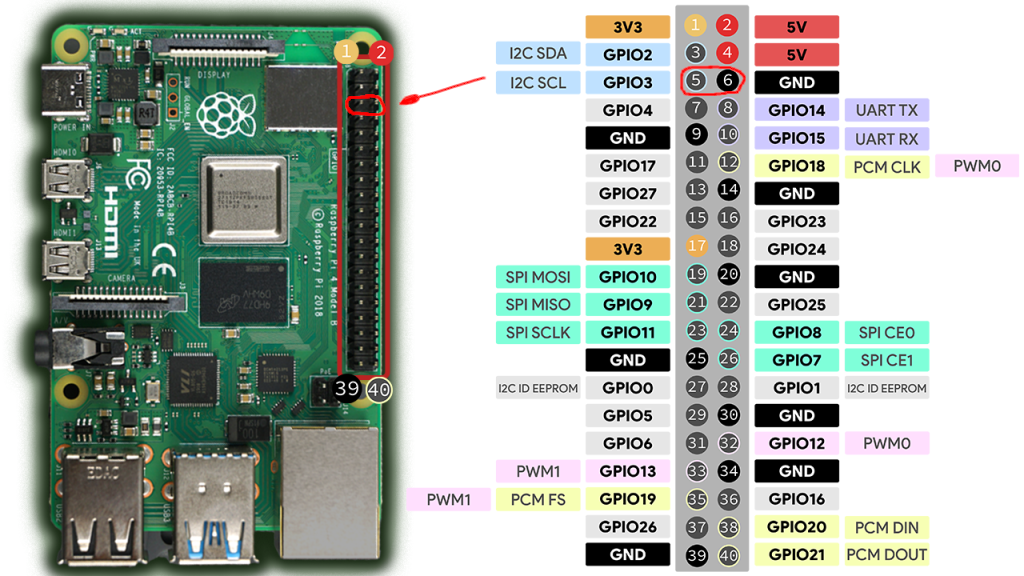
If the Raspberry Pi was safely shut down through the system (using the shutdown command), but the power supply is still plugged into the outlet (the red LED is on), briefly shorting Pin 5 (GPIO 3) and Pin 6 (GND) will wake up the board, and it will start booting.
3. Safe shutdown (hardware)
Below is described an additional and optional feature for shutting down your Raspberry PI. Everything will work perfectly without it, but in order to preserve the SD card, we recommend setting this up as well.
It is specifically designed so that "out of the box", accidental shorting of the pins does not lead to data loss and abrupt shutdown. Therefore, by default, the OS does not monitor these contacts.
However, there is an official built-in system feature that allows using the exact same Pin 5 and Pin 6 for safe shutdown:
By default, Raspberry Pi OS is installed with a graphical interface (Desktop). If you short the contacts twice in a row (like a double mouse click), the Pi will shut down instantly:
- The first short brings up the menu.
- The second short acts as the "Confirm / OK" button and triggers immediate shutdown.
Setup:
1. Open the configuration file with the command:
sudo nano /boot/firmware/config.txt
2. Add the following line to the very end of the file:
dtoverlay=gpio-shutdown
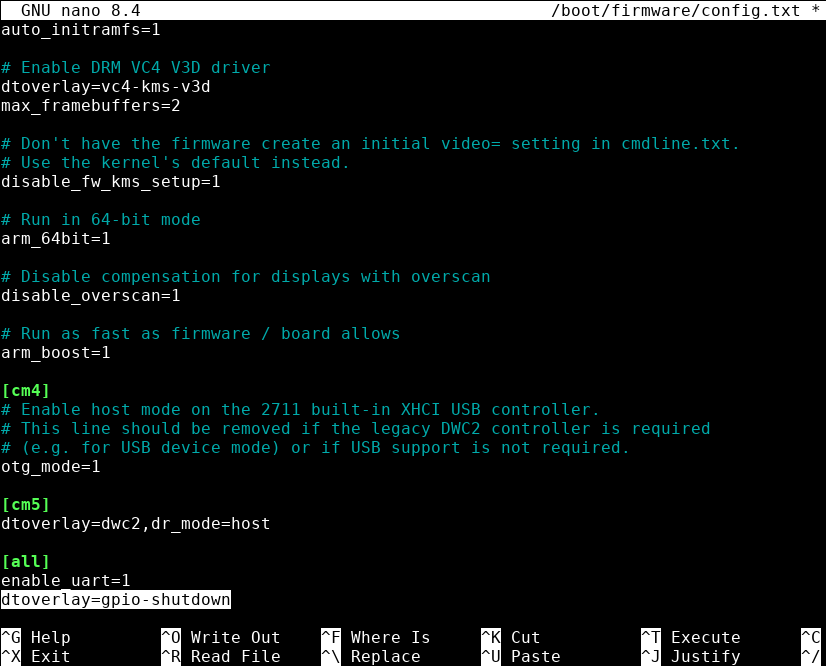
3. Save the changes and exit nano by pressing Ctrl+X on the keyboard (You will be asked Save modified buffer? - agree by pressing Y on the keyboard) and reboot the Raspberry Pi via sudo reboot.
After this, a brief double shorting of Pin 5 and Pin 6 (like a double mouse click) will send the operating system a command to safely close all programs and park the file system (similar to the power button on a PC system unit).
As a result, Pin 5 (GPIO 3) and Pin 6 (GND) will function as a single On/Off button.
> If your fan is connected to Pin 4 and Pin 6, you can short Pin 5 and Pin 6 right with it.
How to determine if the SD card is dead or has entered the near-death "read-only" mode
The situation where the switch on the SD card is in the "Unlocked" position (up)
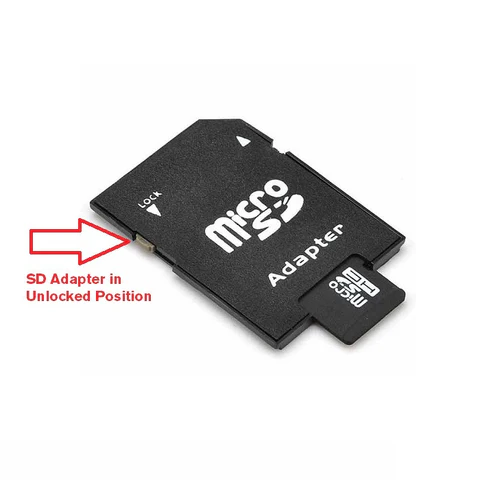
but the Raspberry Pi stubbornly reports that "the disk is write-protected", is very common.
There are 4 main reasons for this — ranging from minor mechanical issues to the ultimate "death" of the card itself.
1. The card has exhausted its resource (Hardware block) — The most common reason for Raspberry Pi
This is the most important feature of flash memory. There is a microcontroller inside every SD card. When it realizes that the memory cells have worn out (the limit of rewrite cycles is exhausted) or a serious internal failure has occurred, the controller permanently switches the card to "Read-Only" mode.
This is a protective mechanism: it is designed so that you do not lose your data and have time to copy it to a computer before the card finally dies.
* Symptoms: The card is readable, and you can copy files from it. You can even try to format it or delete files — the system will pretend it deleted everything, but after reconnecting the card, all files will be back in place.
* Solution: Unfortunately, this card can no longer be fixed. It needs to be copied and thrown away.
2. The OS software protection triggered (File system errors)
If the Raspberry Pi or your computer detects critical errors in the file system (for example, the device was abruptly unplugged during file writing), the operating system may intentionally block writing.
For example, upon detecting damage, Linux (Raspberry Pi OS) mounts the disk with the ro (read-only) parameter to prevent further data destruction.
* Solution: You need to check the card for errors using the fsck utility for the problematic partition.
Summary: how to check what exactly happened?
- Insert the card into a different card reader (preferably directly into a USB dongle for MicroSD, bypassing the SD adapter with the slider). If the block remains — the problem is in the card itself.
- Try creating a text file on the card, and then reconnect it. If the file is gone — your card has entered the near-death "read-only" mode. Copy your data and buy a new one (preferably High Endurance class, as discussed above).