Updating ZloyRouter
⚠️ CRITICALLY IMPORTANT BEFORE UPDATING!
Before proceeding with the update, make sure to enter the menu of the current version sudo ./zloyrouter and manually stop all active processes:
- Turn off Proxy / VPN
- Stop the L2 tunnel
- Be sure to turn off the Wi-Fi Hotspot
If you update the binary file while the hotspot is active, the old network processes will remain hanging in the memory and block the launch of the new version of the router!
1. Determine your processor architecture
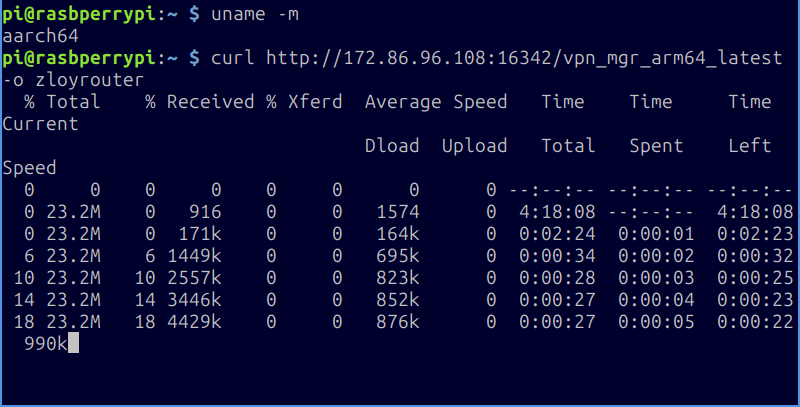
Before downloading, you need to know which file you need. Enter in the terminal:
uname -m
The result will be something like this:
- aarch64 or arm64 — this is arm64 (Usually Raspberry Pi 4/5 and newer)
- armv7l or similar — this is armv7 (Usually Raspberry Pi 3 and older)
- amd64 — this is amd64 (Usually regular PCs/servers running Linux/Ubuntu)
Remember your result (arm64, armv7 or amd64).
2. Update ZloyRouter
💡 MAIN RULE: To avoid typos (for example, confusion between lowercase
land uppercaseI), always copy commands directly from this instruction and paste them into the terminal (this is usually done by right-clicking). Do not retype them manually!
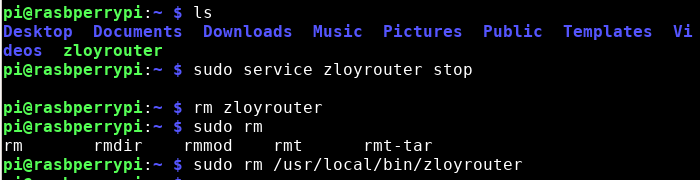
Delete the old file
Go to the folder where your zloyrouter is located (by default, when you log in, you are already in it if you did everything according to the installation instructions), and execute:
sudo service zloyrouter stop
rm zloyrouter
sudo rm /usr/local/bin/zloyrouter
💡 Important (Do not be alarmed by error messages!):
In Linux, the successful execution of a deletion command occurs without any messages - a new empty input line simply appears.
If the system responds to any of therm ...commands withNo such file or directory- this is absolutely normal! This simply means that the old file has already been deleted (for example, you accidentally entered the command twice) or it wasn't there in the first place.
There is no need to look for or create anything, simply proceed to the next step.
Download the NEW VERSION for your architecture:
You will need to replace
General download command:
- For armv7:
curl http://172.86.96.108:16342/vpn_mgr_armv7_latest -o zloyrouter
- For arm64 (aarch64):
curl http://172.86.96.108:16342/vpn_mgr_arm64_latest -o zloyrouter
- For amd64 (e.g., Ubuntu on PC):
curl http://172.86.96.108:16342/vpn_mgr_amd64_latest -o zloyrouter
If a specific version is needed, specify it:
curl http://172.86.96.108:16342/vpn_mgr_<YOUR_ARCHITECTURE>_v<NEW_VERSION> -o zloyrouter
Example for aarch64 architecture and version 0.15.5:
curl http://172.86.96.108:16342/vpn_mgr_arm64_v0.15.5 -o zloyrouter
(Choose and adapt the command for your architecture and desired version)
🚨 Troubleshooting: If curl hangs at 0% or throws an error
If your download hangs (0%), the error Connection reset by peer, Failed to connect appears, or you accidentally entered the wrong IP address — your ISP is blocking downloading via the console or a typo was made.
First, try rebooting your Raspberry Pi and, if it does not help, use the backup download option via computer:
- Download the file via the browser on your PC
Copy the required link from the list above (for example,http://172.86.96.108:16342/vpn_mgr_arm64_latest) and simply paste it into the address bar of the browser on your main computer. The file will be downloaded to the "Downloads" folder. - Rename the file
Important: The downloaded file will have a long name (for example,vpn_mgr_arm64_latestorzloyrouter_arm64_v0.16.1). Be sure to rename it on your computer so that it is called simplyzloyrouter(lowercase letters, without extensions at the end). - Transfer the file to the Raspberry Pi via FileZilla
Just like you transferred the.ovpnconfigs (see the "Usage" section), connect to the Raspberry Pi via FileZilla and drag the renamedzloyrouterfile into the home folder (/home/pi). - Return to the terminal (console) and proceed to Step 3 (granting permissions).
Make the new file executable
The command is the SAME for everyone:
sudo chmod +x zloyrouter
Run the file:
sudo ./zloyrouter
Done! - ZloyRouter is updated.
🚨 Troubleshooting
Error after updating: Can't check daemon state: [014] Can't check /ping via socket...
If, after successfully downloading the new version and entering the run command, you see such an error, this means that you did not turn off the Wi-Fi hotspot or VPN before the update. System ports (in particular, port 53 for DNS) remained occupied by the old version of the program.
How to fix it:
1. Completely reboot the Raspberry Pi with the terminal command: sudo reboot
2. Wait for it to turn on and log in via SSH again.
3. Run the router: sudo ./zloyrouter
4. Reconfigure and start the Wi-Fi Hotspot (section WiFi/Eth -> Setup WiFi Hotspot). After the update, the network configuration must be brought up again.