Installation
1. Installing the operating system on Raspberry Pi
1.1. Preparing the hardware and SD card
Take the SD card and insert it into your PC (via a card reader or adapter).
Ensure there is nothing important on the card (it will be completely formatted).
For more details on the necessary hardware, see the hardware selection guide.
1.2. Downloading the Raspberry Pi Imager utility
Download the Raspberry Pi Imager program to your computer (Windows, Mac, or Linux):
Go to the Raspberry Pi Imager download page
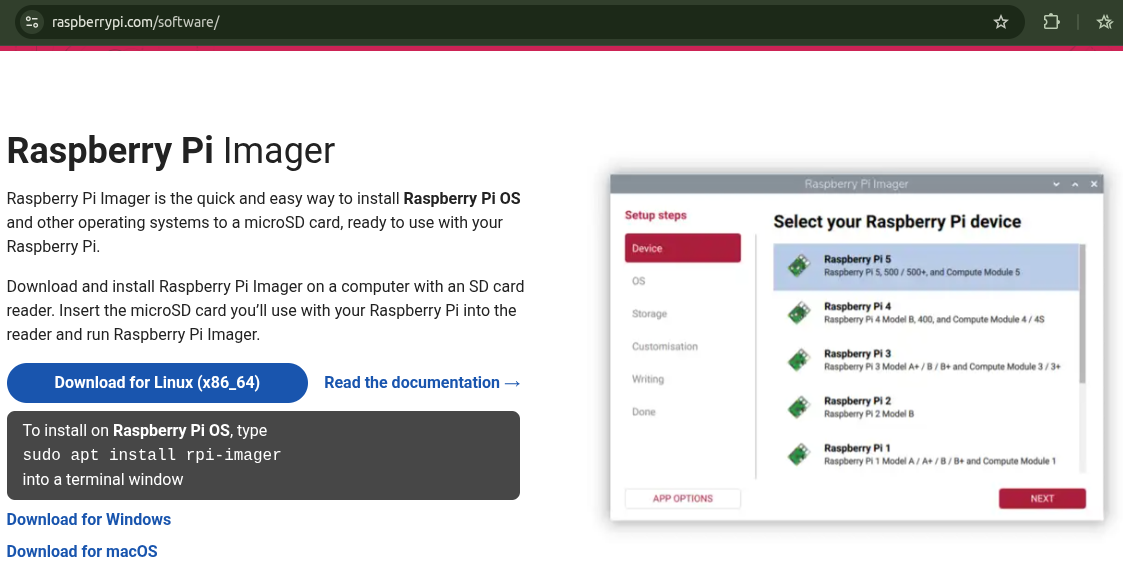
For Windows
Download the latest version from the Raspberry Pi website. Run the installer.
For MacOS
Download the latest version from the Raspberry Pi website. Run the installer.
For Linux
Download the latest version of the AppImage file and make it executable:
sudo chmod +x imager_<version>.AppImage
or
right-click on the file > properties > permissions > make the file executable
Run the AppImage file. Click on the file or enter in the terminal:
sudo ./imager_<version>.AppImage
If there are any problems launching the downloaded AppImage package, you can try downloading the package via:
sudo snap install rpi-imager or sudo apt install rpi-imager
and run via
sudo rpi-imager
1.3. OS Installation
1.3.1. Launching Raspberry Pi Imager
Launch the Raspberry Pi Imager application in one of the following ways:
- Find it in the applications menu.
- Click the Raspberry Pi Imager icon on the desktop.
- Run the AppImage file with administrator privileges. For example, using the command: sudo ./Raspberry_Pi_Imager-2.0.0-desktop-x86_64.AppImage
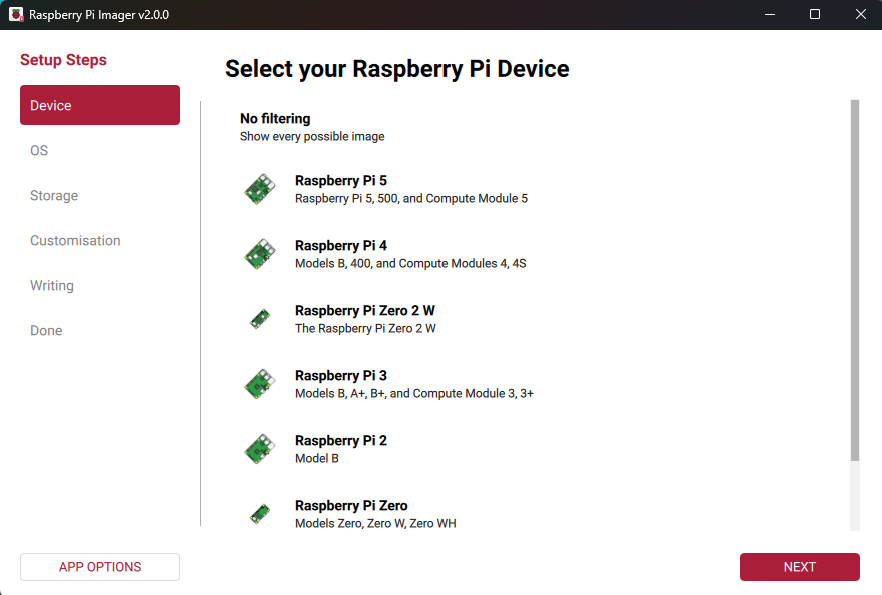
On the Device tab, select your Raspberry Pi model from the list. Click Next.
1.3.2. Configuring basic settings
- Select the OS image from the list.
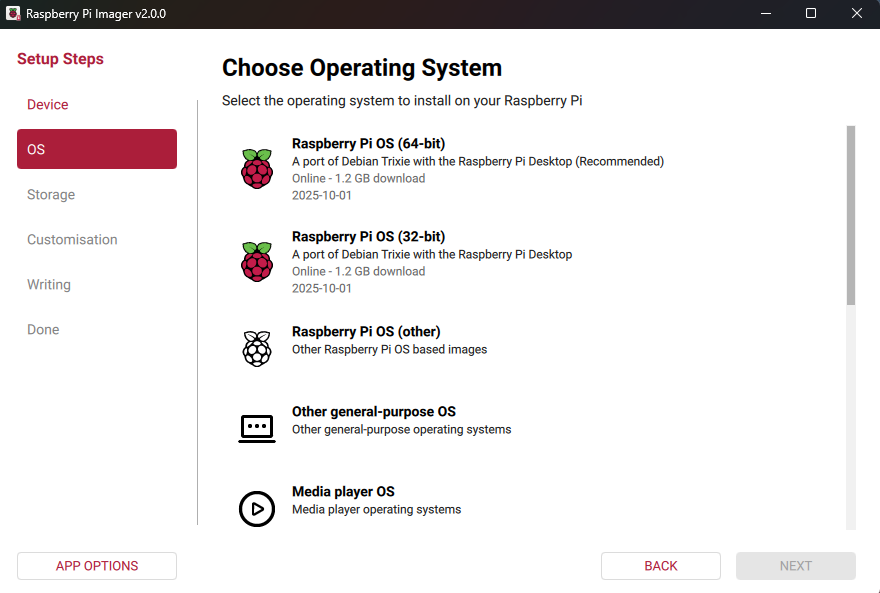
-
Specify the SD card ("Storage" or "Накопитель").
On the Storage tab, select the storage device to which you want to write the image. Click Next.
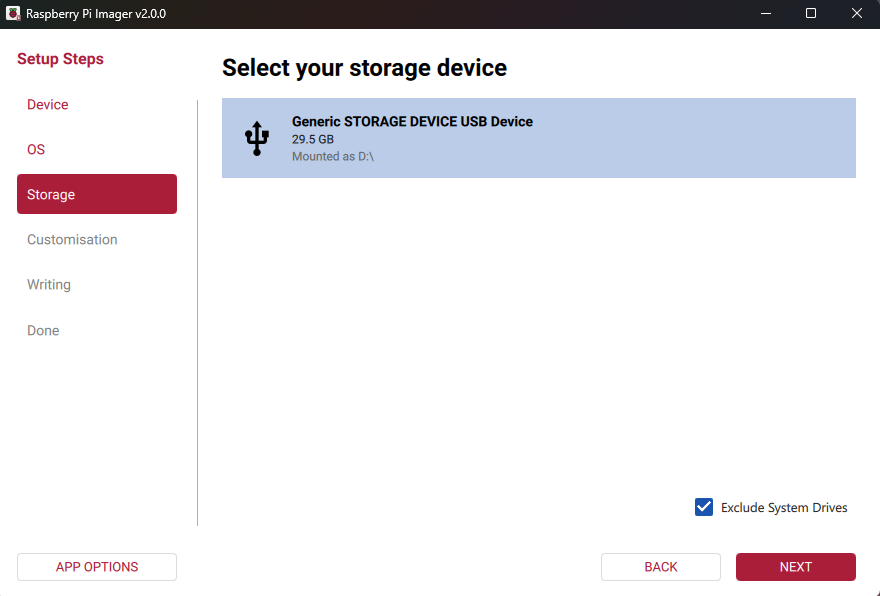
Sometimes, when choosing a storage device, you may see nothing (an empty list).
In this case, uncheck "Hide system drives" (or "Исключить системные диски") and select your SD card.Attention!
If multiple storage devices are connected to your computer, be sure to select the correct device (the SD card)! Storage devices can often be identified by their size. If you are not sure, disconnect other devices until you identify the device you want to image. The Imager program will issue a warning if you attempt to overwrite a system drive on your computer.
1.3.3. Operating system configuration
-
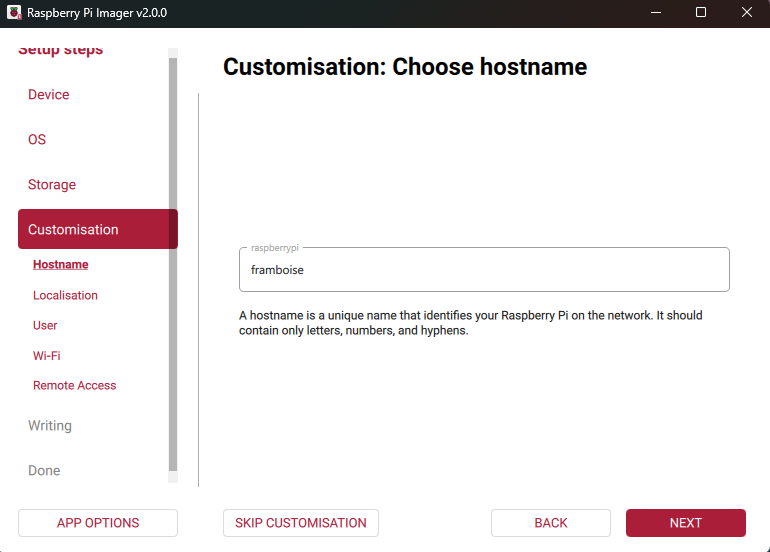
On the Settings > Hostname tab, enter a hostname for your Raspberry Pi consisting only of letters, numbers, and hyphens. Click Next.
-
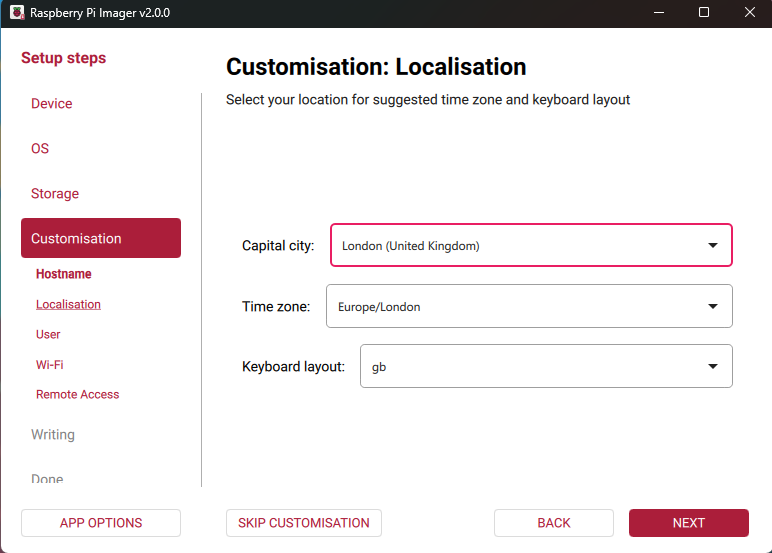
On the Settings > Localisation tab, select the capital of your country. Imager will automatically fill in the time zone and keyboard layout fields for this city; you can change these settings. Your selection also determines the Wi-Fi regulatory domain; the regulatory domain always corresponds to the selected capital. Click Next.
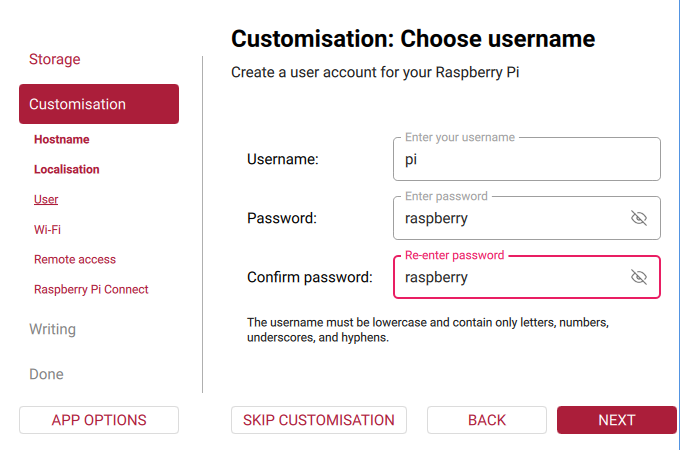
- On the Settings > Username and password tab, enter a username and password (e.g., login: pi, password: raspberry or your own) for your Raspberry Pi administrator. Click Next.
-
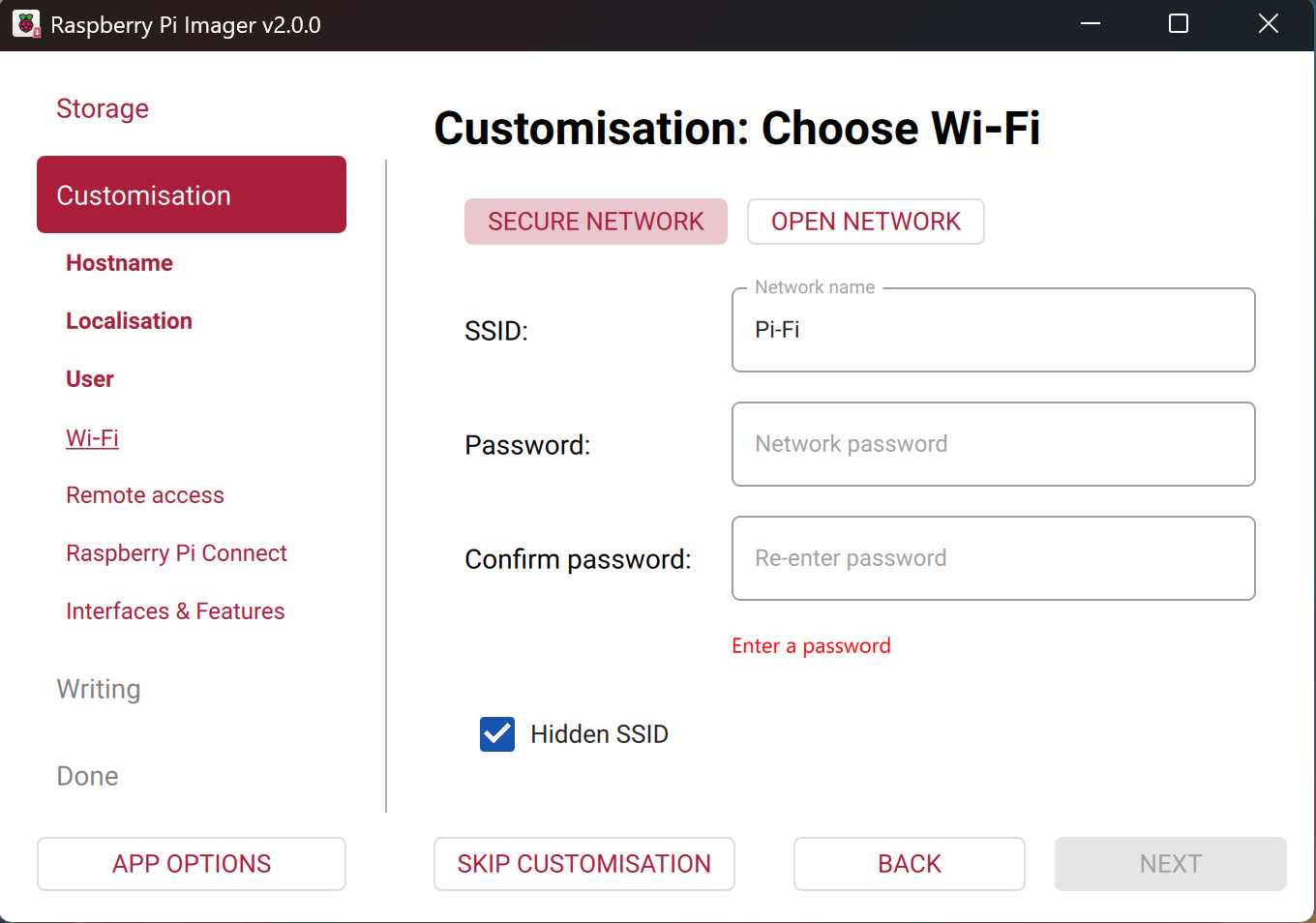
On the Settings > Wireless LAN tab, upon first use, Imager automatically enters the SSID (name) and password of the Wi-Fi network you are currently connected to.
-
⚠️ CRITICALLY IMPORTANT! You need to clear all settings from this section, so the fields are empty (as shown in the screenshot below).
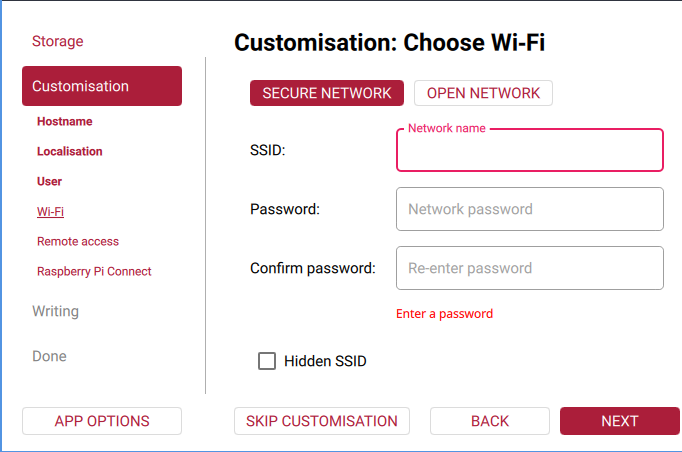
Network settings must be empty,** because we will be broadcasting Wi-Fi ourselves, not connecting to it. Just connect the Raspberry PI with a cable to your router so that they are on the local network.Why this is important: The Raspberry Pi has only one built-in Wi-Fi module. It can perform only one task: either connect to a home router or broadcast an access point. If you leave your home Wi-Fi settings here, the Raspberry Pi will connect to it, and ZloyRouter will throw a
no available WiFi device founderror when trying to create its own access point.
Therefore, the network settings must be empty. We will supply the Internet to the Raspberry Pi via a cable! -
⚠️ MANDATORY! On the Settings > Services (Remote access) tab, configure the SSH settings.
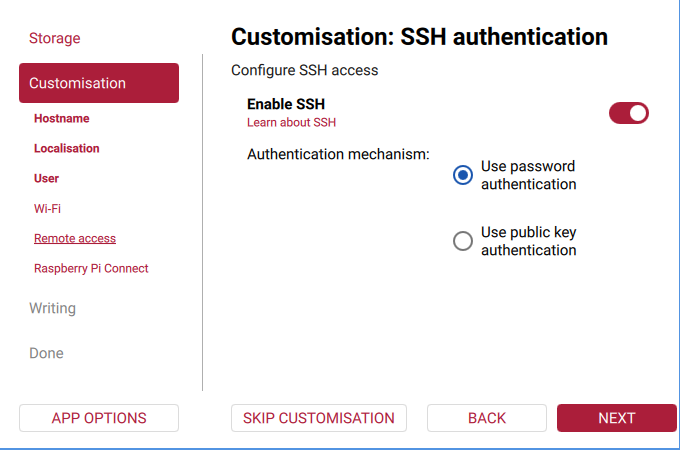
Toggle the Enable SSH switch to the active position and select "Use password authentication".
If you forget to do this, you will not be able to connect to the Raspberry Pi (the system will give aConnection refusederror). -
Some operating systems now display a Settings > Raspberry Pi Connect tab.
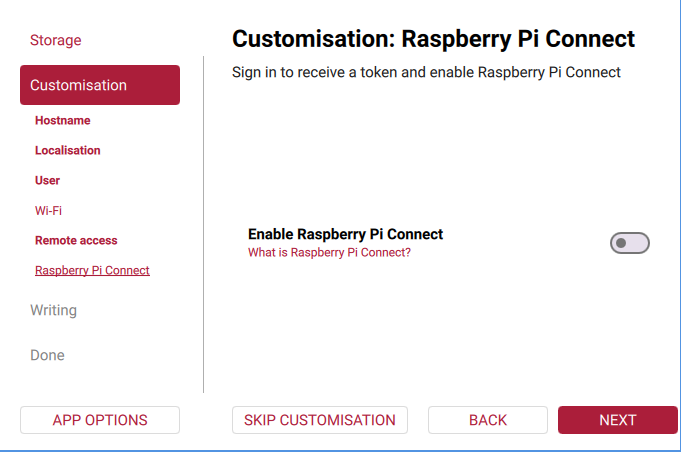
Nothing needs to be configured here - just click NEXT. -
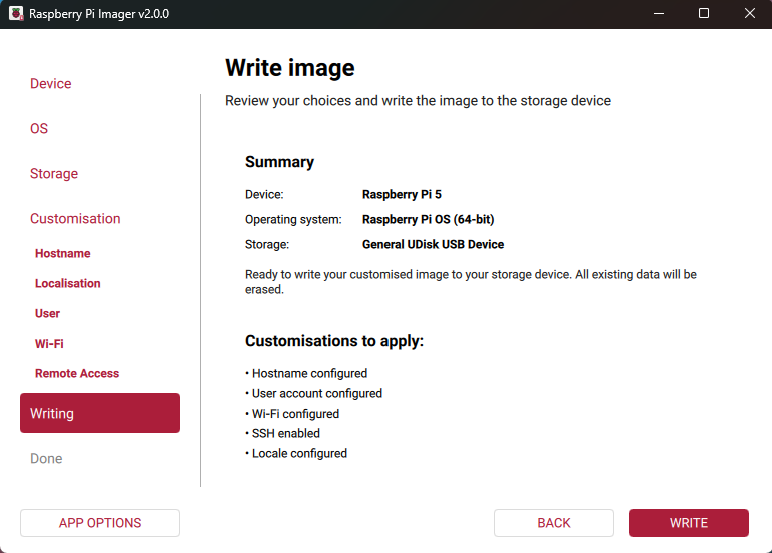
The final settings should look like this
-
After that, click "WRITE" and wait for the writing to complete.
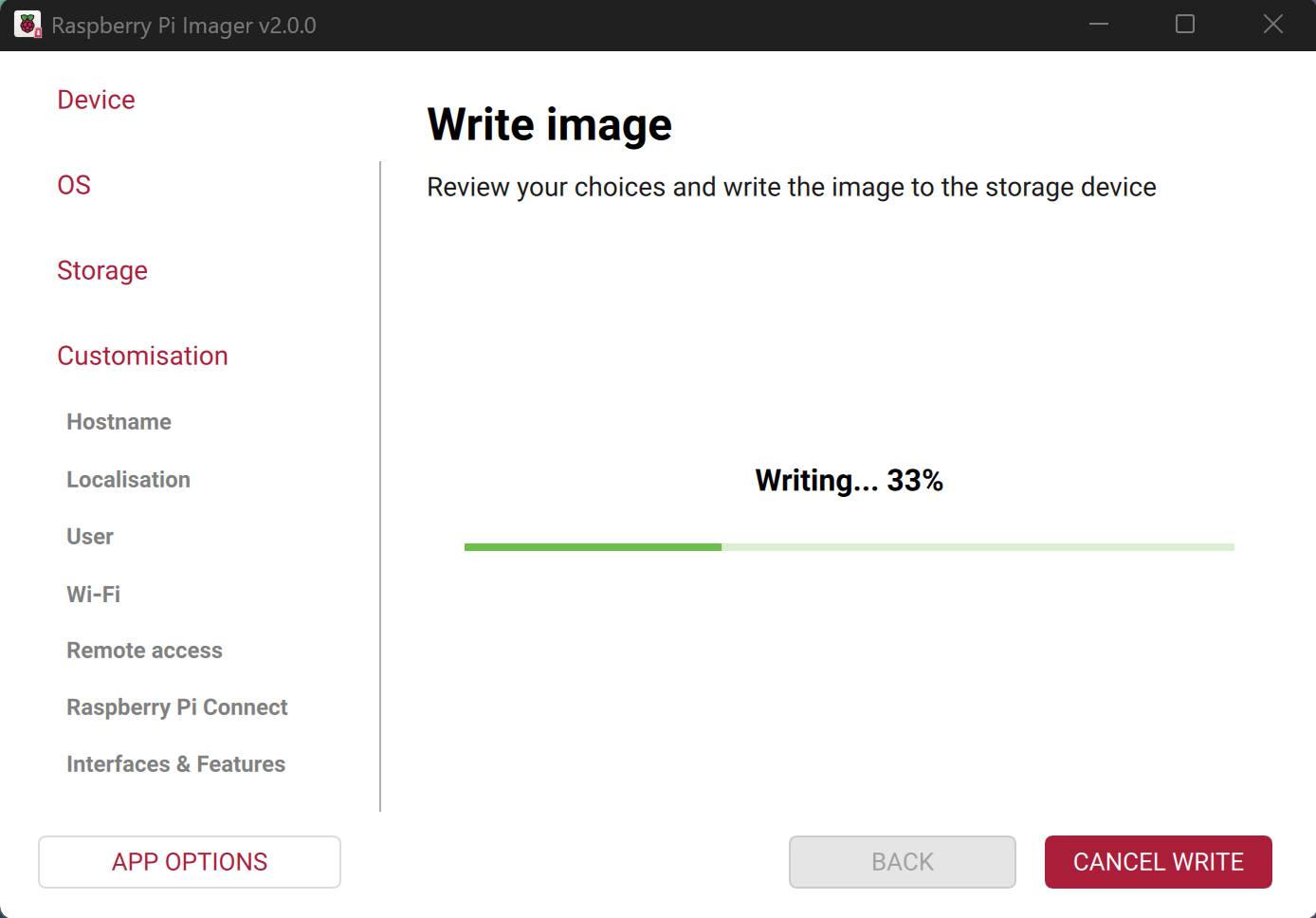
-
When the writing is complete, remove the SD card from the adapter and insert it into the Raspberry Pi.
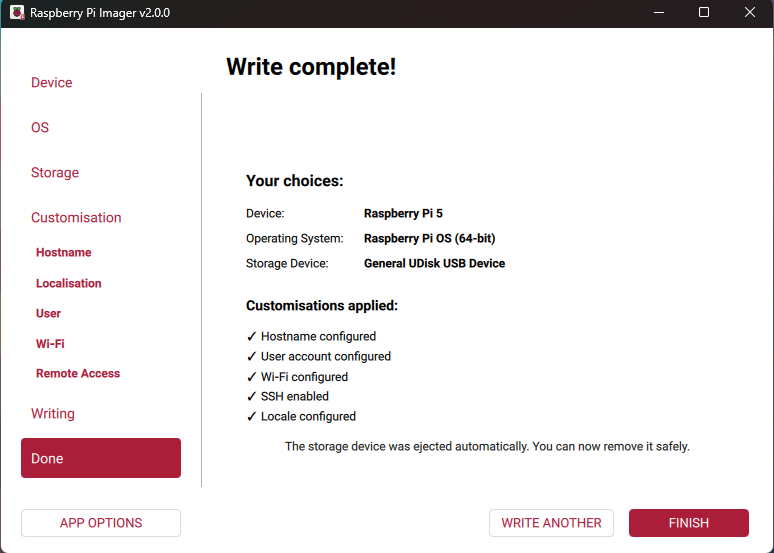
2. Initial setup of Raspberry Pi and connecting via SSH
For the program to install and check the license, the Raspberry needs the Internet.
Options for connecting the Raspberry Pi to the Internet
There are 3 ways to connect the Raspberry Pi to the Internet:
1. Connect via Ethernet cable to the same router your PC is connected to (the preferred and easiest way).
Operating scheme:
graph LR
    A[🌐 Home router] -->|RJ45 Cable| B(🍓 Raspberry Pi <br> ZloyRouter)
    B -->|Wi-Fi network 'Zloy'| C[💻 PC / Laptop]

    classDef zloy fill:#e74c3c,stroke:#c0392b,stroke-width:2px,color:#fff;
    class B zloy;
With this connection method, your PC and the Raspberry Pi are on the same network, and the router will assign them IP addresses automatically.
- Connect the Raspberry and PC to a mobile network via a 4G modem with Wi-Fi. This is relevant if you are traveling and there is no regular wired router nearby.
Operating scheme:
graph LR A[🗼 4G/LTE Tower] -->|Radio channel| B[📶 USB 4G modem] B -->|USB port| C(🍓 Raspberry Pi <br> ZloyRouter) C -->|Wi-Fi or Cable| D[💻 PC / Laptop] classDef zloy fill:#e74c3c,stroke:#c0392b,stroke-width:2px,color:#fff; class C zloy; - Share the Internet from a PC, but this is the most complex and unstable method, so we don't recommend even trying to use it. It's better to purchase the hardware recommended for the first two options and start working in just 45 minutes
Below we will consider the listed methods in more detail.
How to find out the IP address of the Raspberry Pi on the local network (via a router or 4G modem)
Important rule before starting: Your computer (or smartphone) and the Raspberry Pi must be connected to the same network (to the same router or the Wi-Fi network of the 4G modem).
Method 1: Name instead of numbers (The fastest)
If you have the standard Raspberry Pi OS installed, you don't even need to know the numerical IP address. The device itself announces its name to the network.
1. Open the command prompt on your computer (press Win + R, type cmd, and press Enter).
2. Enter the command:
ping raspberrypi.local
(If you specified a different device name when flashing the drive, enter it instead of raspberrypi).
3. If the Raspberry Pi is on the network, replies will start. In these lines, you will see its numerical IP address (for example, 192.168.1.45 or 192.168.8.100).
4. To connect via SSH, you can use this name directly:
ssh pi@raspberrypi.local
This is the simplest method, but due to Windows network security settings, it does not always work. If it didn't work, try the methods below.
Method 2: Via the router / 4G modem control panel (The most accurate)
Since the router (or 4G modem) distributes the Internet, it knows exactly to whom and what IP address it assigned.
On OpenWRT:
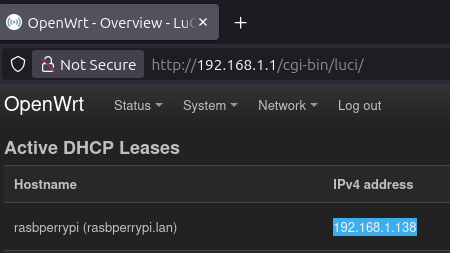
On TP-LINK routers:
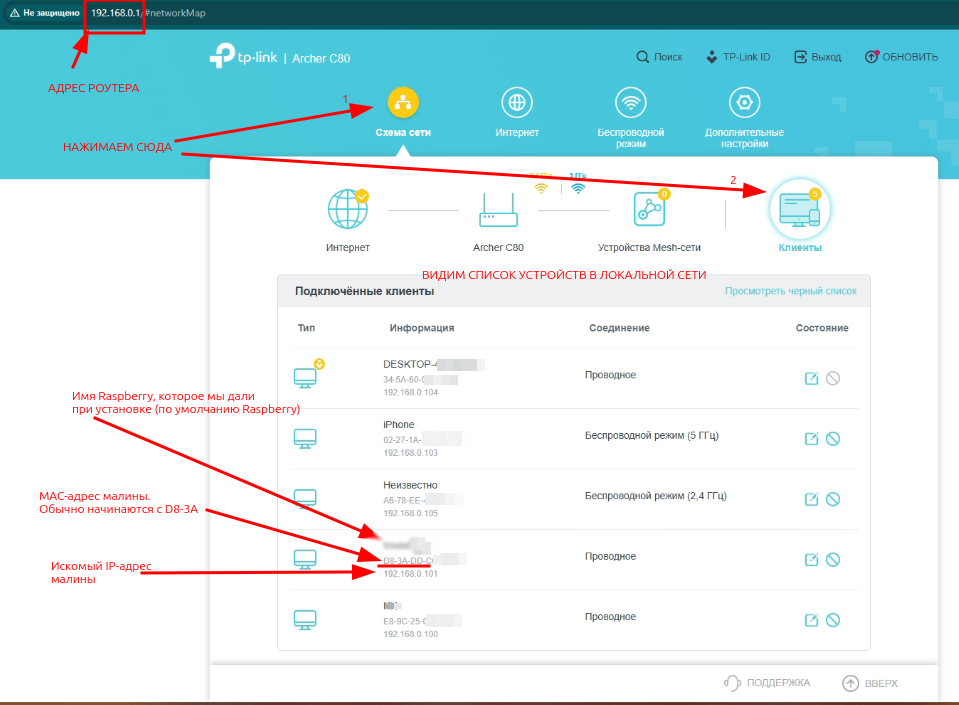
1. Open a browser on your computer or smartphone.
2. Go to the router settings. Usually, this is the address 192.168.1.1, 192.168.0.1 (for home routers) or 192.168.8.1 (often used in Huawei/ZTE 4G modems).
3. Enter the login and password (usually they are written on a sticker on the bottom of the router/modem; often it is admin / admin).
4. Find the section called "Device List", "DHCP Clients", or "Connected Devices".
5. In the list, you will see a device named raspberrypi (or whatever you named it during installation). Next to it, its IP address will be indicated.
Method 3: Using scanner programs (The most visual)
If you cannot access the router, you can scan the network with a special program.
Option A: From a computer (Windows)
1. Download and run the free Advanced IP Scanner program.
2. Click the large "Scan" button.
3. The program will find all devices on your network. Look in the "Manufacturer" column for Raspberry Pi Foundation. The required IP address will be shown next to it.
Option B: From a smartphone (Android / iOS)
1. Connect the phone to the same Wi-Fi (from the router or 4G modem).
2. Install the free Fing - Network Scanner app.
3. Tap "Scan Network" (Поиск устройств).
4. The app will show a list of devices with icons. Find the raspberry icon or the text Raspberry Pi. The IP address will be shown below it.
Method 4: Via Windows command prompt (For advanced users)
If you do not want to install third-party programs:
1. Open the command prompt (cmd).
2. Enter the command to view the routing table:
arp -a
3. You will see a list of IP addresses and their MAC addresses (physical addresses).
4. Look in the list for MAC addresses starting with:
- b8-27-eb...
- dc-a6-32...
- e4-5f-01...
- 28-cd-c1...
These are the official identifiers for Raspberry Pi network cards. The IP address in the same line as such a MAC address is your Raspberry Pi.
Connecting to the Raspberry Pi via SSH
Having found out the IP address (let's say it will be 192.168.0.3 or 192.168.1.138, as in the screenshot below), you can connect to the Raspberry Pi via SSH::
- Checking port availability (via netcat): nc -zv 192.168.0.3 22
- Connect to the Raspberry Pi via SSH:
From Windows, this can be done using the PuTTY / Bitvise program or any other SSH client (for example PowerShell).
The program will ask you to enter the connection address. Enter it in the format username@Raspberry_IP (for example pi@192.168.0.3 or pi@192.168.1.138, as in the screenshot below). If you specified a username other than pi when writing the Raspberry OS image to the flash drive, enter yours.
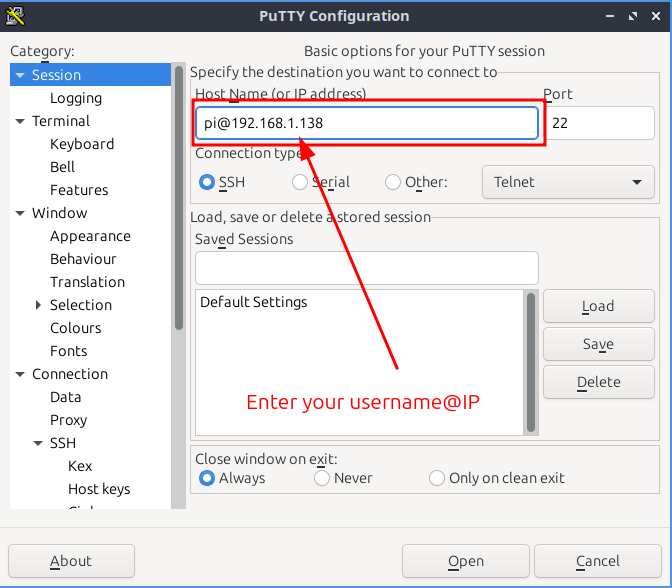 After clicking Open, you will be shown a password prompt window.
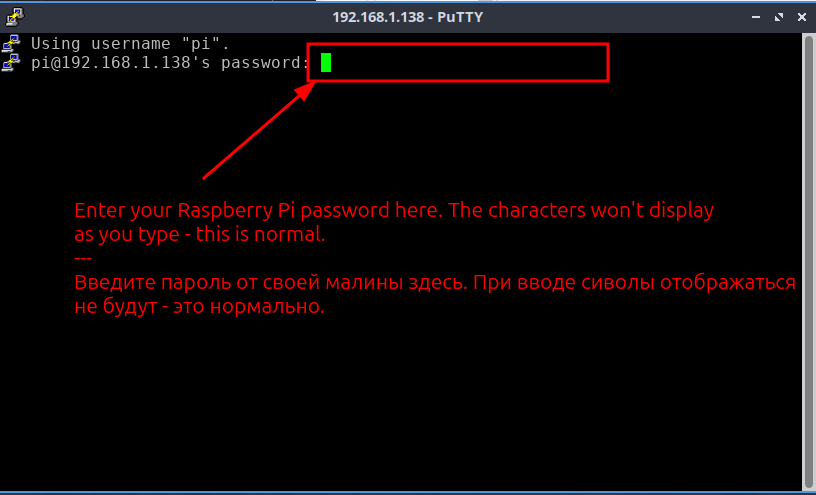
Enter the password and press Enter. Congratulations - you have logged into the Raspberry Pi.
From a Linux/MacOS terminal – using the command:
ssh pi@192.168.0.10
(where pi is your login, 192.168.0.10 is the Raspberry Pi's IP address).
If you were previously unable to determine the Raspberry Pi's IP address - try:
ssh pi@raspberrypi.local
(Attention: if you came up with your own login instead of pi when flashing the drive, use it).
Please note that when entering the password in the SSH terminal, the characters are not displayed (this is normal). 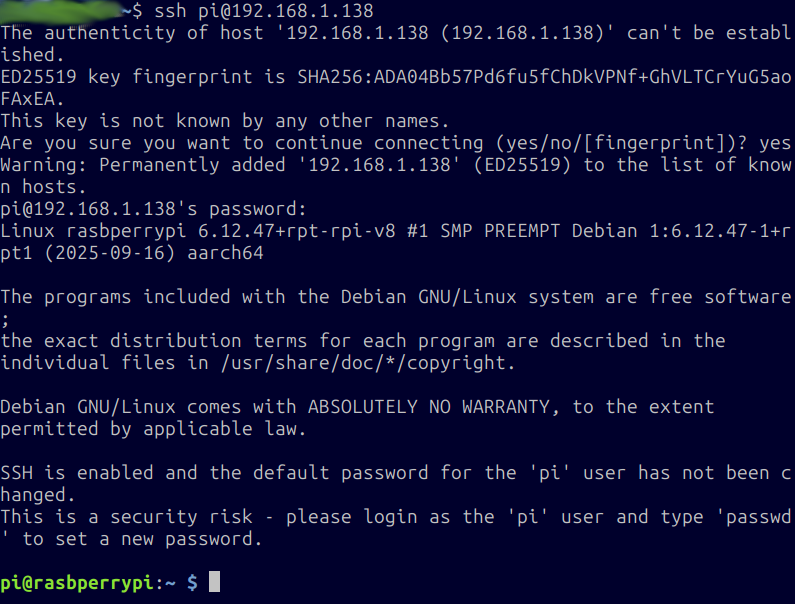
4. Update the system by entering in the terminal:
sudo apt update && sudo apt upgrade -y
Wait for the update process to finish - do not close the terminal window. 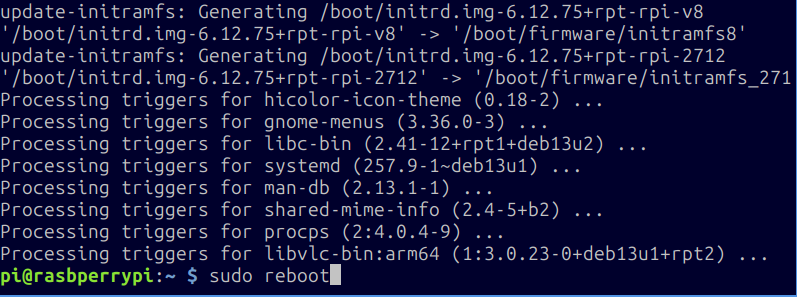
If instead of such a window you see this:
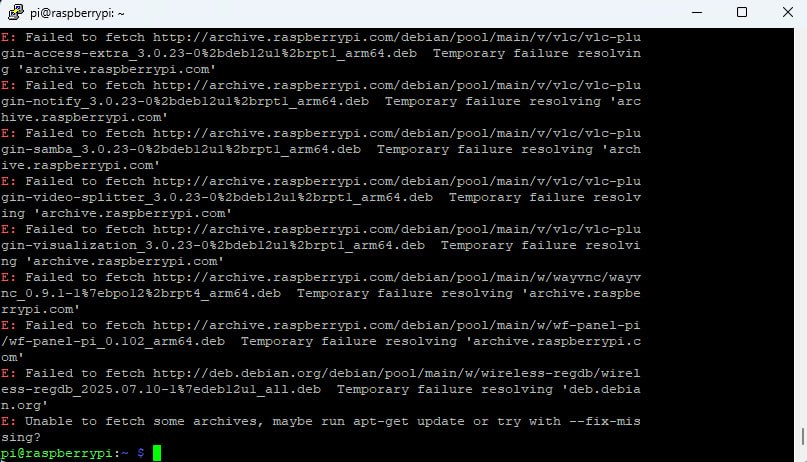
This means that your Raspberry Pi either has no Internet access or the current time is set incorrectly (for example, it has been sitting unused for a long time).
How to check and fix the system time on the Raspberry Pi?
Check the current date by entering date in the terminal. If it turns out to be outdated, set the current one via sudo date -s "2026-05-24 22:32:03" (just enter the actual date and time).
How to check for Internet access on the Raspberry Pi?
Execute: ping 8.8.8.8
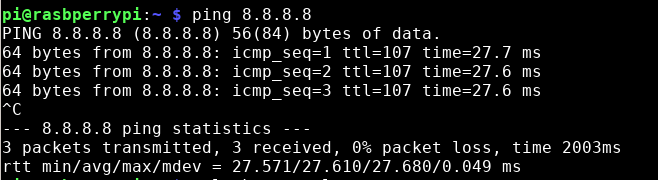
The ping goes through - there is Internet. The date is correct - you can start the update.
- Reboot the device using
sudo rebootto apply the updated OS kernel settings. After that, log into the device again using ssh pi@192.168.1. - Configure the country for Wi-Fi by entering:
sudo raspi-configand in the menu that appears, go toLocalisation Options → WLAN Countryand select any country - this does not affect anything, but it must be set for Wi-Fi to start.
2.1. Handling the Raspberry Pi correctly to avoid burning it out
Important: Do not turn off the Raspberry Pi by disconnecting it from the power source (pulling it out of the socket), as this can damage the microSD memory card.
ZloyRouter (like any other program) is under no circumstances able to physically damage your device.
1. Safe shutdown (software)
The most correct way to turn off the Raspberry Pi is by connecting via SSH and using the system commands sudo shutdown -h now or sudo halt
2. Turning on (Wake up)
If the Raspberry Pi was safely shut down via the system (using the shutdown command) but the power supply is still plugged into the outlet (the red LED is on), momentarily shorting Pin 5 (GPIO 3) and Pin 6 (GND) will wake up the board, and it will begin to boot.
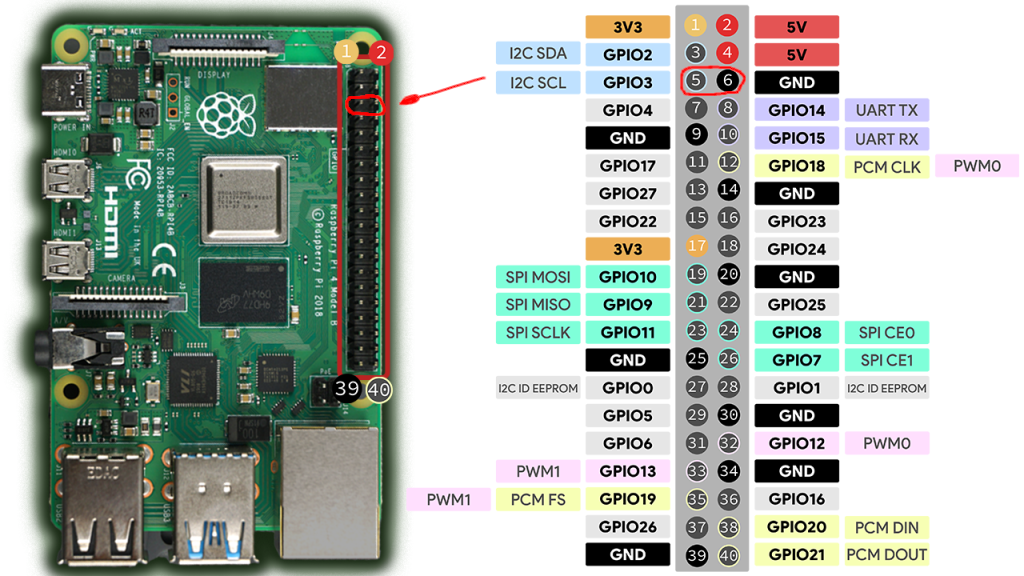
3. Safe shutdown (hardware)
It is specially designed so that "out of the box", accidental shorting of the pins does not lead to data loss and an abrupt shutdown. Therefore, by default, the OS does not monitor these contacts.
However, there is an official built-in function that allows you to use the exact same pins for a safe shutdown:
1. Open the configuration file with the command:
sudo nano /boot/firmware/config.txt
2. Add the following line to the very end of the file:
dtoverlay=gpio-shutdown
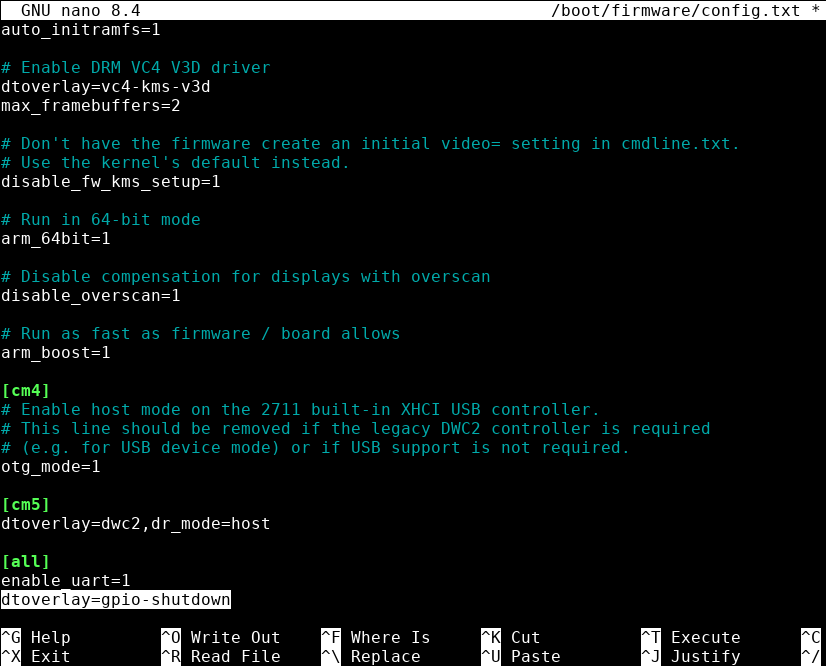
3. Save the changes and exit nano by pressing Ctrl+X on the keyboard (you will be asked Save modified buffer? - agree by pressing Y on the keyboard) and reboot the Raspberry Pi using sudo reboot.
After that, momentarily shorting Pin 5 and Pin 6 will send a command to the operating system to safely close all programs and park the file system (analogous to the power button on a PC system unit).
As a result, Pin 5 (GPIO 3) and Pin 6 (GND) will act as a single On/Off button.
2.2. Network setup while traveling (hotels, coworking spaces)
If you are away from home and do not have access to the router's admin panel to find out the Raspberry Pi's IP address, use the following methods:
Method A: Connecting via local name (mDNS)
If the Raspberry Pi is connected by cable to the hotel router, and your laptop is connected to the Wi-Fi of the same hotel, try connecting without an IP address:
ssh pi@raspberrypi.local
(works on most modern networks).
Method B: Hardware activation of Internet sharing (shorting pins)
If you only have Wi-Fi (no possibility to connect the Raspberry Pi by cable to the router), you can force the Raspberry Pi to share the Internet via cable to your laptop to log into it and configure Wi-Fi.
👉 What this gives you: You no longer need a monitor, keyboard, or a long search for the Raspberry Pi's IP address on a stranger's hotel network. Just take ZloyRouter out of your backpack, plug it into an outlet, short two contacts with a regular paperclip — and you instantly have a working access point set up. Ideal for working on the go!
1. Plug the Raspberry Pi into an outlet and wait for it to boot.
2. Momentarily short
* Pin 39 (GND) + Pin 29 (GPIO5) = Brings up Wi-Fi HotSpot 🛜
* Pin 14 (GND) + Pin 13 (GPIO 27) = Brings up Ethernet sharing 💻
1. Connect the Raspberry Pi and your laptop with a LAN cable.
2. Connect via SSH to the standard address (for example, ssh pi@192.168.2.1 or ssh pi@raspberrypi.local).
3. Now you need to connect the Raspberry Pi to the hotel's Wi-Fi via the command line. Execute the command to search for networks:
sudo nmcli dev wifi list
4. Connect to the desired network (replace SSID and password with yours):
sudo nmcli dev wifi connect "WIFI_NAME" password "WIFI_PASSWORD"
5. Check the connection status: sudo nmcli device status.
6. Launch ZloyRouter (sudo ./zloyrouter) and configure the VPN.
3. Installing ZloyRouter
When installing and configuring ZloyRouter, pay attention to your keyboard layout - it must be EN.
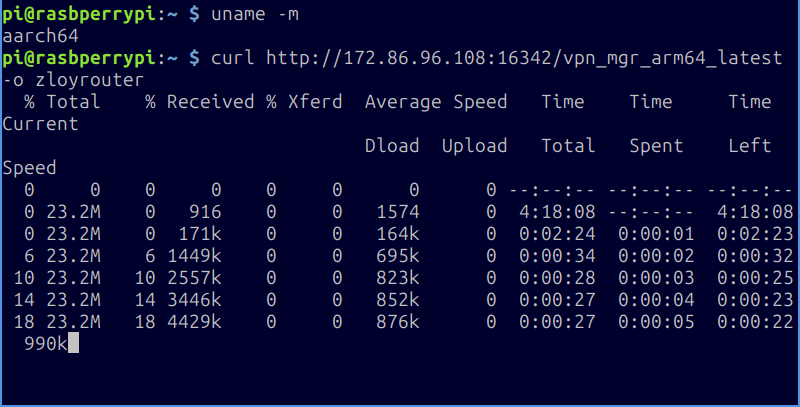
3.1. Checking the processor architecture
- Execute the command:
uname -m - Depending on the result, there are several options:
armv7l – means you need the file vpn_mgr_armv7_latest
aarch64 (or arm64) – means you need the file vpn_mgr_arm64_latest
x86_64 (rare on a Raspberry Pi, but happens on regular PCs) – vpn_mgr_amd64_latest
3.2. Downloading the required binary
- For armv7:
curl http://172.86.96.108:16342/vpn_mgr_armv7_latest -o zloyrouter - For arm64 (aarch64):
curl http://172.86.96.108:16342/vpn_mgr_arm64_latest -o zloyrouter - For amd64 (for example, Ubuntu on a PC):
curl http://172.86.96.108:16342/vpn_mgr_amd64_latest -o zloyrouter
3.3. Making the file executable and running it
- Grant run permissions:
chmod +x zloyrouter - Run:
sudo ./zloyrouter
(when using the sudo command in the terminal for the first time, it will ask you to enter the password you specified when installing RaspberryOS. When typing/pasting it from a file, it will not be displayed and will not show up as * (asterisks) - this is normal. This is how it is in all Linux systems for security reasons) -
On the first launch, the program will most likely throw an error, but at the same time, it will display your License Key (a special hash).

This key needs to be provided (for example, to the author of ZloyRouter) for activation.Attention! The key is unique, tied to a specific device, and is not reset after reinstalling the system.
Attention! We value your privacy and do not collect any data without your knowledge!
If you are not an experienced Linux user, we recommend enabling log collection - this will help in diagnosing problems if any arise.
For logs to be collected, written to disk, and survive a device reboot, it is necessary to launch ZloyRouter in persistent log support mode:
sudo ./zloyrouter -journald-persistent enable
After activation, you will be able to fully use ZloyRouter.
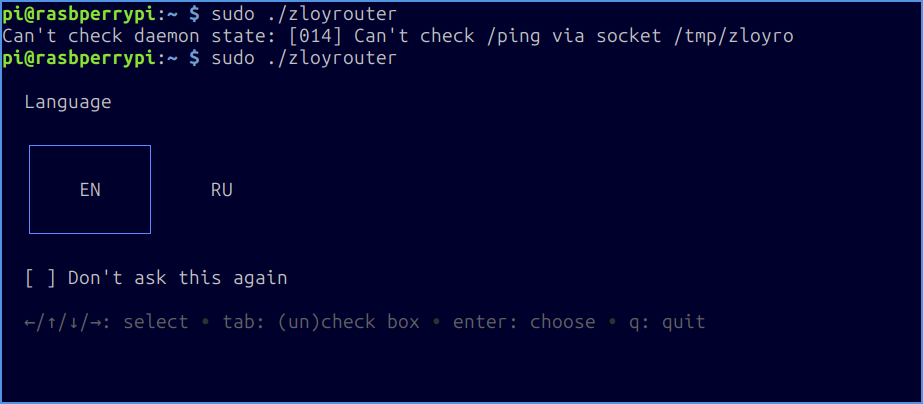
If, when launching after activation, you see the message:
Can't check daemon state: [014] Can't check /ping via socket /tmp/zloyrouter (or any other) - this means that your copy has not yet had time to receive a license from our licensing server. Wait a couple of minutes and try again, as shown in the image.
Attention! After installation and the first launch, control over the operation of ZloyRouter passes to the system daemon. Even after exiting the configurator or closing the terminal window, ZloyRouter continues to run as a background Linux process.
Re-entering thesudo ./zloyroutercommand does not launch additional copies of the program, but simply opens the ZloyRouter management interface.
After the first launch, you will be asked to choose a language. Select a convenient one and start working!