Using ZloyRouter
Starting the program:
Open the terminal and run the command:
sudo ./zloyrouter
Wi-Fi Configuration
After selecting the system language, we move on to configuring the Wi-Fi Hot-Spot.
In the main menu, go to the "WiFi/Eth" section
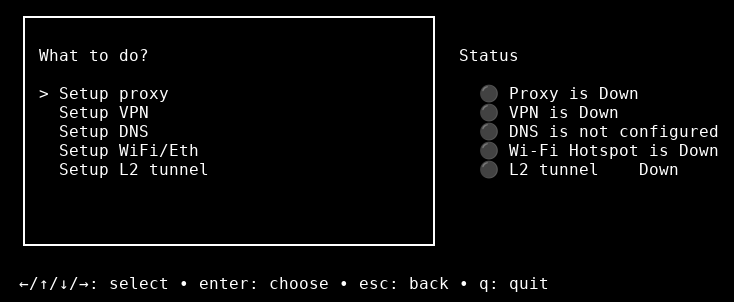
Select the "Setup WiFi Hotspot" option.
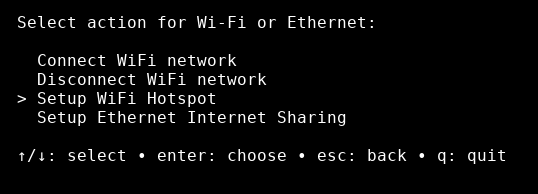
You will be prompted to enter:
- The WiFi network name (SSID).
- The WiFi password (at least 8 characters)
- (Optional) Network interface, gateway, MAC address. If not specified, the program will select them automatically.
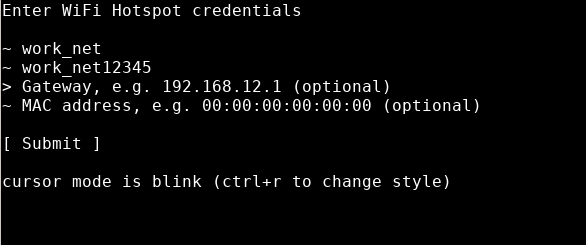
Additionally, ZloyRouter allows you to manage the local network when sharing (Wi-Fi Hotspot / Sharing) by configuring:
- Gateway — the starting point of the local network and, consequently, the subnet in which client devices will reside.
- and DHCP will automatically assign addresses to connected devices within the selected network.
Below, as an example, is a network configuration variant where the subnet 192.168.2.* is redefined and strictly set
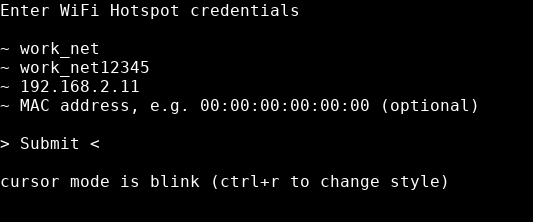
This setting is not mandatory, but you can use it if necessary.
Save the settings by pressing Submit / Save
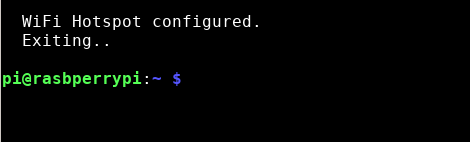
Result: you get a manageable LAN environment, which can be standardized for your task and scaled across multiple devices/stands.
Once the WiFi hotspot has started successfully, you can connect to this WiFi network from other devices (phone, laptop, etc.) using the network name and password you specified.
L2 Tunnel Configuration
A feature required to access blocked resources. If there are no blocks or restrictions in your country of residence, using an L2 tunnel is not required.
In the program's main menu, select the "L2 Tunnel" item.
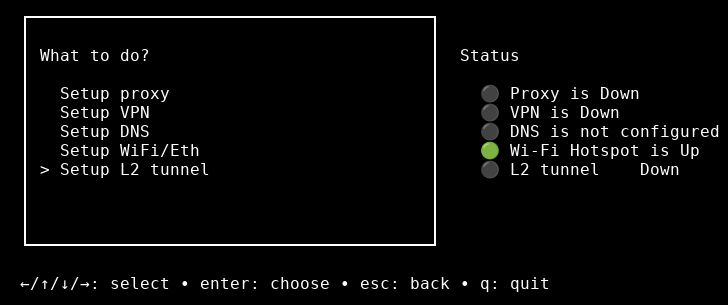
Next, select one of the available profiles to start the tunnel.
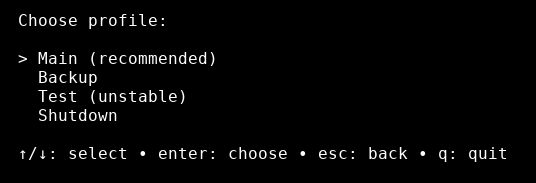
If you need to stop a previously started tunnel, select the appropriate item ("Stop L2 tunnel").
The L2 tunnel startup will begin:
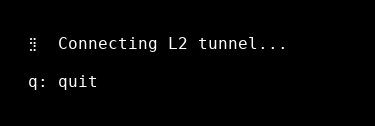
For the L2 tunnel to work, you must turn off your VPN\Proxy or any other methods of bypassing blocks.
Proxy Configuration
The main advantage of configuring a proxy on the ZloyRouter gateway side compared to using a proxy in the browser is that your devices and the browsers on them will not know they are behind a proxy. For them, the connection is native at the hardware level.
%% Note: If you are working with applications that rely on "proper resolving" (when the response to a specific name must return IP addresses configured in the specific DNS for that site), and also if the application relies on ping (ping only goes as far as your Raspberry Pi), it is recommended not to use VDNS, but by priority: DoH and only then UDP. Read about the configuration below%%
Thanks to the proprietary WunderDNS technology, ZloyRouter provides:
✅ Smart DNS adjustment: If the proxy, when trying to get DNS from a US proxy, issues a hypothetical "Uruguay" DNS on native requests or does not support UDP, WunderDNS will automatically route DNS requests through ultra-fast encrypted channels (DoH/DoT) or through an L2 tunnel (if it is currently active).
✅ ECS spoofing: Even when sending a request through fast public servers, WunderDNS forcibly "embeds" your proxy's IP into it. Anti-fraud systems see that the request came from a resident of the country to which the proxy belongs (e.g., USA), and not from your real location.
✅ Aggressive caching: Resolving speed increases exponentially. You get the speed of a direct ISP. Ping no longer reveals the presence of a "tunnel"!
Let's proceed to the configuration:
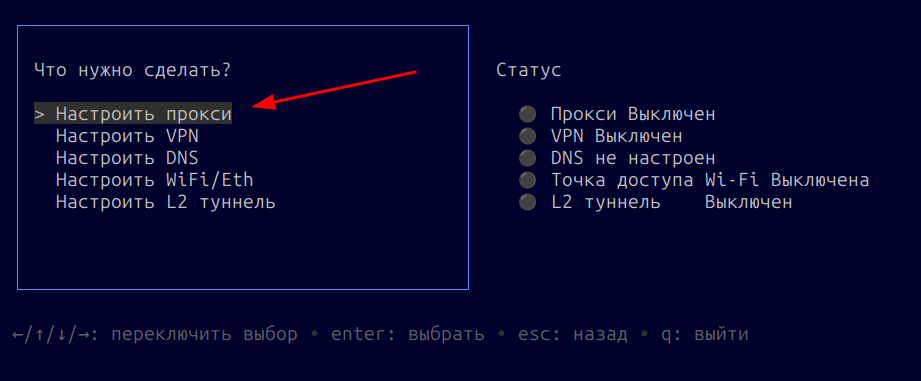
In the main menu, select the "Configure Proxy" item.
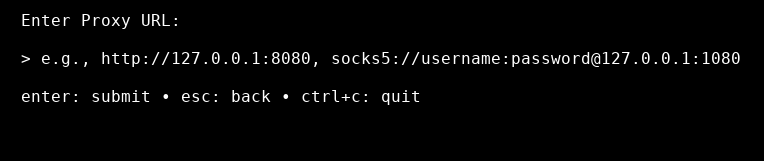
You will be prompted to enter the URL of your SOCKS proxy, for example: socks5://username:password@127.0.0.1:1080
At the same time, ZloyRouter features smart proxy recognition (Smart Paste), meaning you can paste your proxy into the Router in any convenient format:
socks5://ip:port:user:pass
socks4://user:pass@ip:port
https://ip:port|user:pass
etc.
The Router will figure out where the login and password are on its own!
Enter the proxy address and press Enter.
In the next step, you will be prompted to automatically select and install native DNS for your proxy (WunderDNS technology)
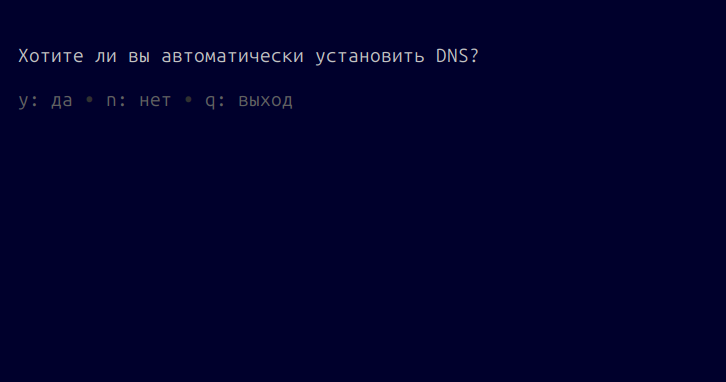
By selecting y, magic happens and our WunderDNS technology conducts a parallel stress test of this proxy in a fraction of a second, as well as its support for Socks5h (If your proxy can work with Socks5h, its DNS will be used, and if not, the availability of DNS servers via UDP is checked)
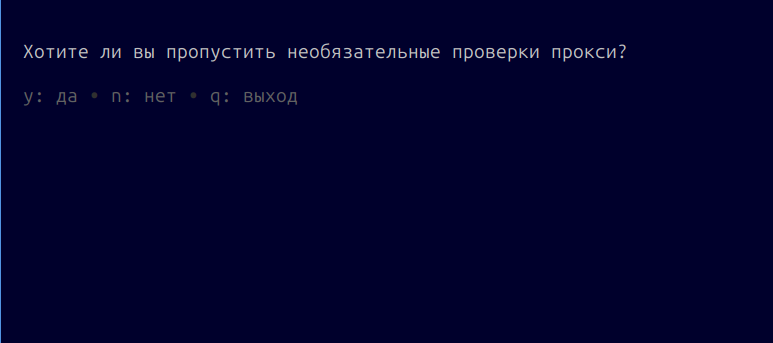
If you are not late for a flight, it is better to press n and run all tests.
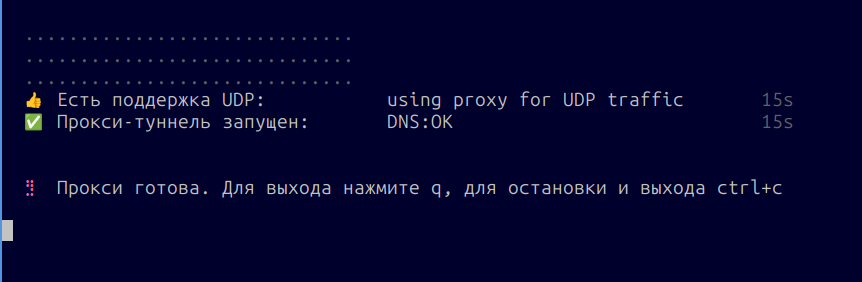
Done! The system has run over a dozen proxy quality tests in the background (including checking for Socks5h, UDP support, and selecting native DNS) and established a connection.
Below is shown how to check the operating speed with and without WunderDNS, i.e., automatic native DNS selection.
How to properly test the speed
- Open the desired website (for example, Amazon) with WunderDNS turned off (i.e., without automatic DNS selection).
- Press F12 (Developer Tools) -> Network tab.
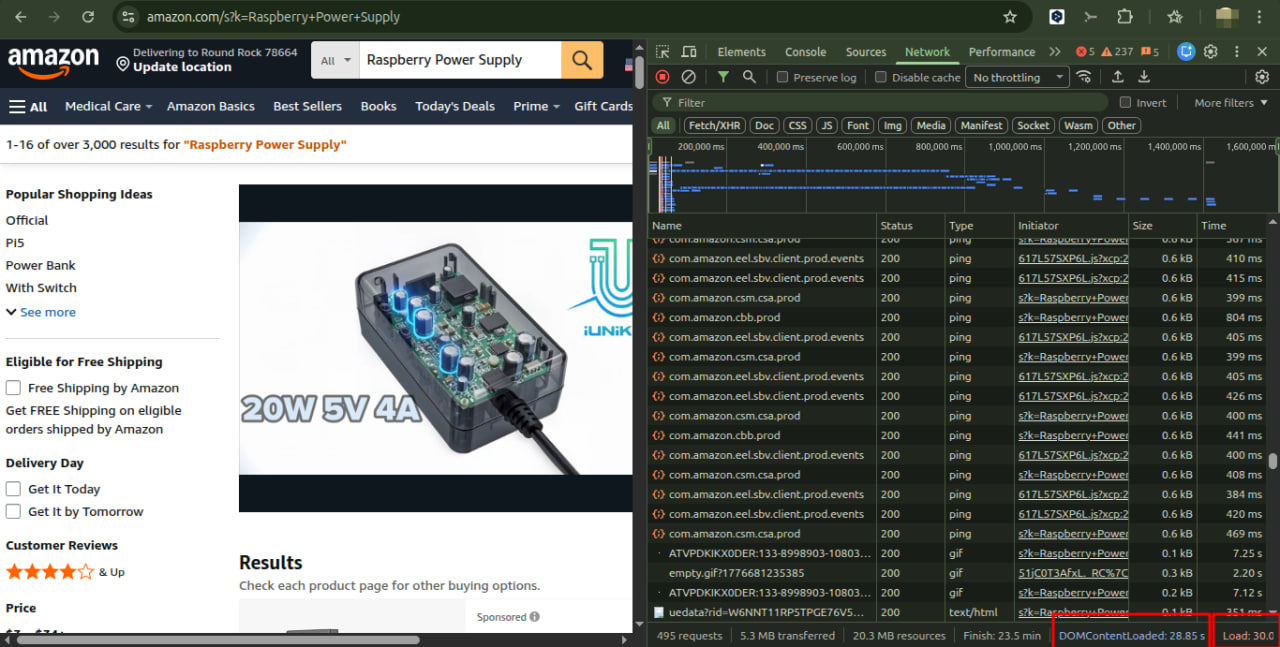
- Look at the DOMContentLoaded indicator (document build time) at the very bottom of the panel.
- Turn on WunderDNS, reconnect.
- CRITICALLY IMPORTANT: Before the second test, be sure to clear the browser cache and OS DNS cache (reconnect to the router's Wi-Fi or use Incognito mode / completely new domains). Otherwise, the browser will take the old cached DNS, and the test will be biased!
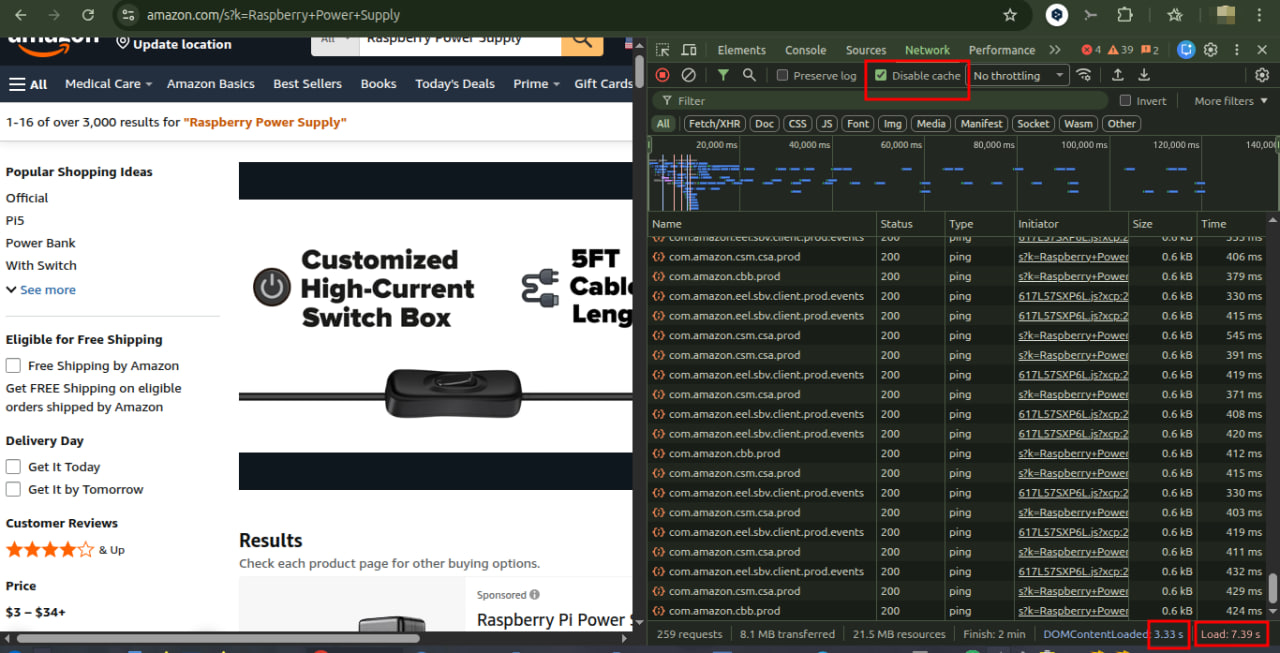
- Measure DOMContentLoaded again.
WunderDNS Configuration
If WunderDNS successfully selected DNS automatically during the proxy configuration, then additional manual DNS configuration is no longer required. In case you need fine manual tuning - you can use the extensive DNS configuration functionality.
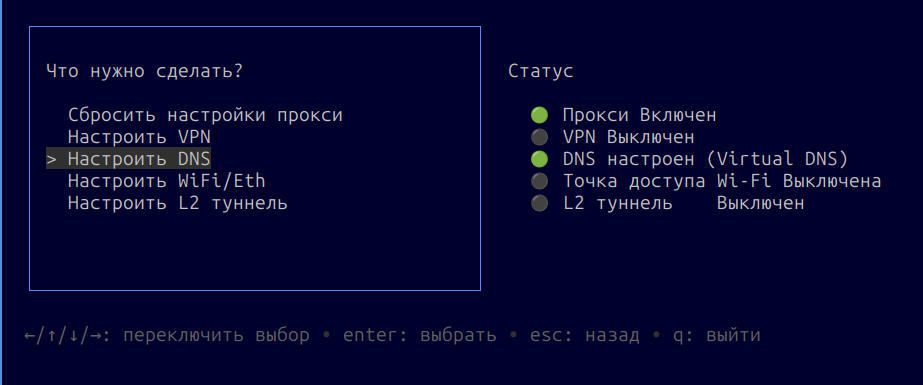
Go to Set up a new configuration
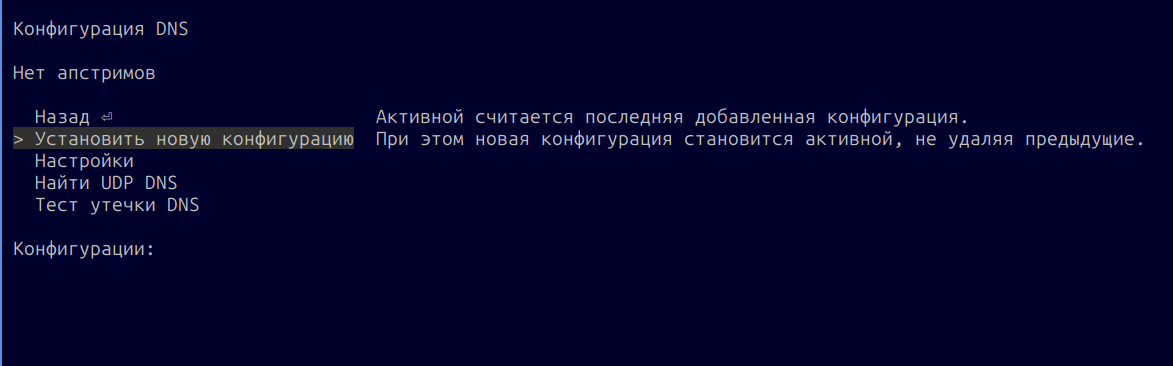
You will be prompted to select the DNS type.
More about DNS types:
DNS Type (UDP / DoH / DoT) — this is the upstream protocol (how exactly WunderDNS accesses the DNS server)
Binding — this is the connection type/routing, specifying exactly how this upstream will be "carried out" to the network.
1) UDP + Socks5 UDP
Classic DNS over UDP via SOCKS5
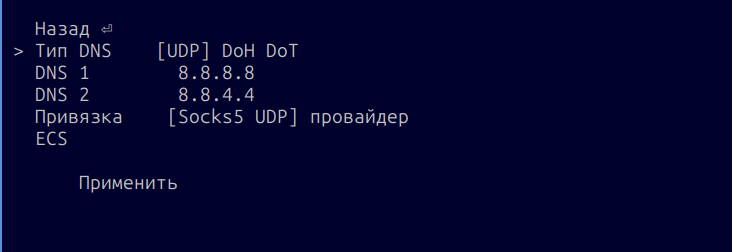
What it is: regular UDP DNS requests over port 53 to DNS 1 and DNS 2, but sent through a SOCKS5 proxy with UDP relay support. If the Socks5 Proxy does not support UDP, then "Socks5 UDP" will not be displayed in the Binding line; instead, there will only be the ISP and the L2 tunnel, if active.
How it works:
- WunderDNS forms UDP DNS requests to 8.8.8.8:53, 8.8.4.4:53 (or your DNS1/2).
If you have your own ISP and you know it has its own DNS server, you can enter it (like Rostelecom or Comcast (especially if your proxy is in the Comcast network) - this will be as native as possible. The advantage of UDP is the ability to manage the cache. This is particularly relevant and becomes noticeable if you plan to work with a proxy for 15 minutes or more.
- The transport to these addresses is built via SOCKS5 UDP ASSOCIATE (if the proxy supports it).
When to use:
- When the proxy does not support Socks5h and you want to use the ISP's DNS server from the proxy network (e.g., Comcast). You know that you are connecting to a hypothetical Comcast and you know exactly what its DNS is.
To check, you can find the Comcast DNS and make a request to it via
dig 75.75.75.75(most likely it will be unavailable), then connect through a proxy and try again - it should become available.
- The proxy is of high quality and stably maintains UDP.
- You want to guarantee that DNS traffic goes inside the proxy, rather than through the ISP.
Limitations/risks:
- Many SOCKS5 proxies provided by ISPs do not support or drop UDP.
- It can be slow/unstable on "overloaded" proxies.
- If the proxy responds "strangely," symptoms of DNS spoofing/substitution are possible (but WunderDNS checks for this during proxy tests).
2) UDP + ISP UDP
Classic DNS over UDP directly through the ISP
Attention: the binding option through your internet service provider (ISP) is for advanced users only, provided you understand how it works and why you need it.
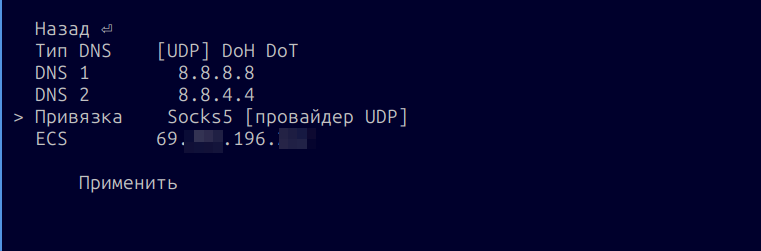
What it is: standard DNS requests via UDP on port 53 are sent to the DNS1 server and (if necessary) to DNS2, but the route is directly through the ISP, bypassing the proxy.
How it works:
- WunderDNS sends UDP/53 to the specified DNS servers via standard network routing through your internet service provider (ISP).
- The proxy is not involved.
When to use:
- The proxy is bad/overloaded, and DNS "through the proxy" slows down or disconnects.
- The main priority is operation speed.
- You are not afraid of ECS leaks and ISP filtering. You have ECS spoofing enabled and are consciously compensating for geo/anti-fraud risks.
Limitations/risks:
- The main risk is DNS leaks along the route (it is visible that your ISP is providing the DNS).
- If ECS is not used or not suitable for the selected resolver, a leak of your real region is possible (the geo-location from DNS might differ from the proxy/VPN IP).
- In some networks, UDP/53 might be restricted or intercepted.
3) DoH + Socks5 DoH
DNS over HTTPS via SOCKS5
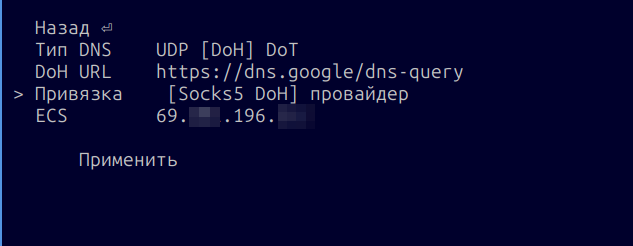
What it is: DNS requests are sent as HTTPS (DoH URL), and the connection to the DoH endpoint is established via SOCKS5.
How it works:
- WunderDNS opens an HTTPS connection (usually HTTP/2) to https://dns.google/dns-query (or another URL).
- The connection (TCP) is made via SOCKS5; if socks5h logic is used, the DoH endpoint name is resolved on the proxy side.
When to use:
- UDP through the proxy is unstable/blocked, but TCP/HTTPS works.
- You need to "mask" DNS as regular HTTPS traffic (often passes through better).
- You want DNS to go inside the proxy (not through the ISP).
Limitations/risks:
- Requires a live TCP connection through the proxy and the availability of the DoH endpoint.
- Sometimes HTTP/2 or specific DoH domains are blocked/throttled.
- If the proxy "only understands HTTP" (not SOCKS5), this binding might be unavailable.
4) DoH + ISP DoH
DNS over HTTPS directly through the ISP (your internet service provider)
Attention: the ISP binding option is for advanced users only, provided you understand how it works and why you need it.
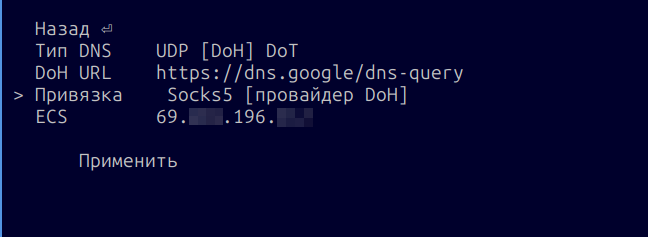
What it is: DoH (HTTPS) to the selected DoH URL, but bypassing the proxy — through the ISP.
How it works:
- The HTTPS connection to the DoH endpoint is established directly via the regular network.
- DNS is sent as HTTPS.
When to use:
- You need speed/stability, and the proxy cannot handle DNS.
- UDP/53 is blocked, but HTTPS goes through.
- You want to reduce DNS "visibility" (HTTPS instead of UDP), even if the traffic goes through the ISP.
Limitations/risks:
- This is still a DNS route leak (the ISP sees the connection to the DoH endpoint).
- Geo/anti-fraud mismatches are possible without ECS or with incorrect ECS.
- Some networks block DoH endpoints.
5) DoT + Socks5 DoT
DNS over TLS via SOCKS5
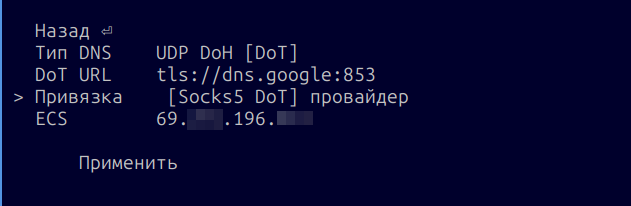
What it is: DoT (DNS over TLS) to the selected DoT URL (tls://host:853) via SOCKS5.
How it works:
- WunderDNS establishes a TCP connection to dns.google:853 (or your DoT URL) via SOCKS5.
- This is followed by TLS, with DNS inside it.
When to use:
- UDP through the proxy does not work, but TCP does.
- DoH is undesirable for some reason (policies/blocks/preferences), but DoT is available.
- You need to keep DNS inside the proxy.
Limitations/risks:
- DoT typically uses port 853, and it is frequently blocked or throttled in networks where HTTPS/443 remains available.
- On some proxies/networks, DoT is less "passable" than DoH.
- Requires stable TCP through the proxy.
6) DoT + ISP DoT
DNS over TLS directly through the ISP
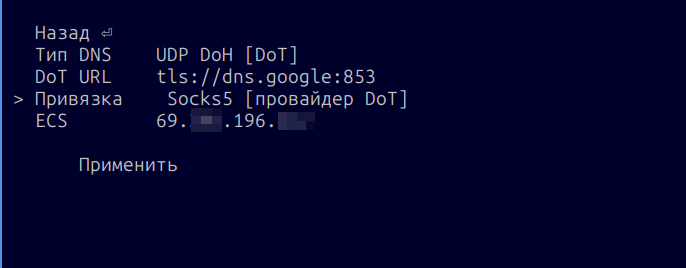
What it is: DoT (DNS over TLS) to the selected DoT URL (tls://...:853) directly through the ISP, without a proxy.
How it works:
- TCP+TLS to the DoT server is established through the ISP.
- DNS is inside TLS.
When to use:
- The proxy is unstable, but DoT is available directly.
- You want encrypted DNS, but without tying it to specific DoH endpoints/HTTPS.
Limitations/risks:
- Blocks on port 853 are possible.
- DNS traffic bypasses the proxy → DNS leaks/geo-mismatches are possible (without ECS or with incorrect ECS).
About ECS
In the settings and screenshots, you see another field ECS 69.{xxx}.196.{xxx}
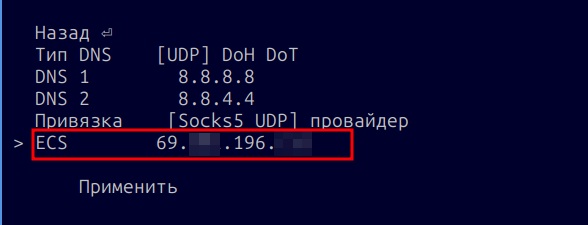
This is the EDNS Client Subnet — a DNS extension with which the resolver can take the "client's subnet" into account for geo-responses (CDN/anti-fraud).
Why it is in WunderDNS:
- If DNS goes not through the proxy (ISP binding), ECS allows you to "spoof" the proxy's IP/subnet, so that CDN/geo responses look like they are intended for the proxy, and not for your real ISP.
- Even with Socks5 binding, ECS can be used to stabilize "geo" on the resolver side.
When to enable/use:
- When you see that without ECS, responses come "from the wrong region" (wrong CDN nodes) or anti-fraud systems react to the mismatch.
Limitations:
- Not all resolvers use ECS equally (e.g., Cloudflare often does not use ECS in a typical scenario; Google does).
- "Always spoofing ECS" is not a universal rule: for some resolvers, this is unnecessary and can even degrade predictability.
VPN Configuration
Instructions: How to upload an OVPN file to a Raspberry Pi via FileZilla
This step-by-step guide explains how to copy an OpenVPN configuration file (with the .ovpn extension) from your computer to a Raspberry Pi using the FileZilla program.
Preparation
Before you begin, make sure you have:
- A configured Raspberry Pi: The device must be connected to your local network (via cable or Wi-Fi).
- Connection details for the Raspberry Pi: IP address (e.g., 192.168.1.105) or network name (raspberrypi.local).
- Username (default is pi).
- Password, which you set during the initial OS installation.
- The .ovpn file: Your VPN configuration file, saved on your computer.
- A computer located on the same local network as the Raspberry Pi.
Installing FileZilla on your computer
FileZilla is a free FTP client that supports secure connections via SFTP (SSH File Transfer Protocol), making it perfect for working with a Raspberry Pi.
Download the installer: Go to the official website: https://filezilla-project.org/ (Select your OS) or download from the App Store.
Click the "Download FileZilla Client" button (NOT Server).
Install the program: Run the downloaded file and follow the installation wizard's instructions.
Connecting to the Raspberry Pi
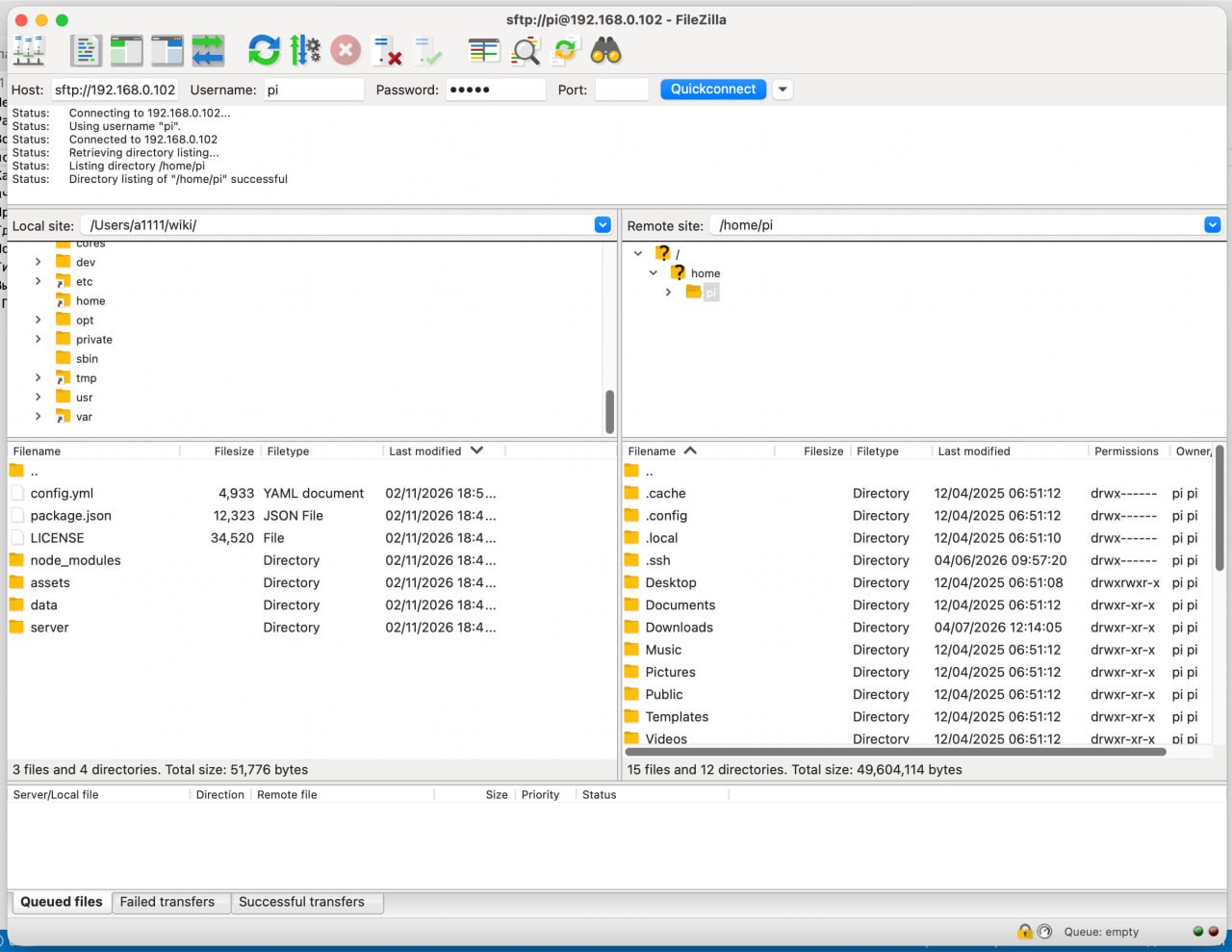
Open FileZilla. At the top of the window, you will see the "Quickconnect" bar.
Fill in the connection fields:
Host: Enter the IP address of your Raspberry Pi or its name (raspberrypi.local).
Username: Enter your username (default is pi).
Password: Enter your Raspberry Pi password.
Port: Enter 22 (this is the standard port for SFTP).
Example entry: Host: 192.168.1.105 | Username: pi | Password: •••••••• | Port: 22
Click "Quickconnect".
Accept the host key: If you are connecting for the first time, a warning window about an unknown host key will appear. This is normal. Check the "Always trust this host" box and click "OK".
Attention!
If you encounter difficulties at this stage, refer to the official documentation on using FileZilla
Copying the .ovpn file
After a successful connection, the program window will be divided into two parts:
* Left (Local site): Your computer's file system.
* Right (Remote site / Raspberry Pi): Your Raspberry Pi's file system.
- Find your OVPN file: In the left panel, navigate to the folder on your computer where the .ovpn file is located.
- Choose the destination on the Raspberry Pi: The right panel will open the home directory of your user (e.g., /home/pi). This is a convenient place to store configuration files (the same place where the ZloyRouter binary is located). If you changed the username, the folder will be: /home/Username.
- Drag and drop the file: Click on the .ovpn file in the left panel, hold down the mouse button, and drag it to the right panel. Release the mouse button.
- Check the result: At the bottom of the FileZilla window, there is a file transfer log. Make sure your file appeared in the "Successful transfers" tab. You should also see it in the file list in the right panel.
Done! Your .ovpn file has been successfully uploaded to the Raspberry Pi and is ready for further configuration and use in ZloyRouter.
Connecting the OVPN config via ZloyRouter
- Start ZloyRouter (if not already running):
sudo ./zloyrouter - Go to the VPN section: Select the VPN item in the main menu.
- Select OpenVPN: In the VPN menu, select OVPN.
- Specify the path to the file:
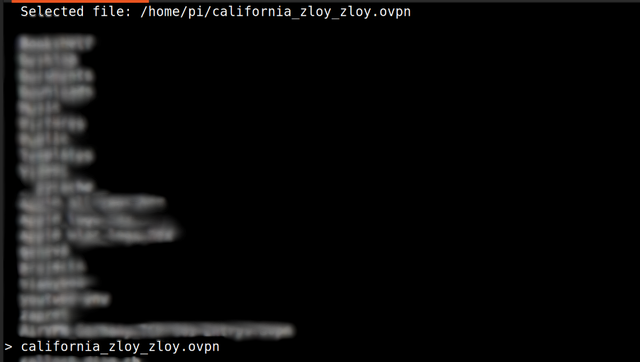
- The file manager will open. Navigate to the folder where you uploaded the OVPN config (e.g., /home/pi).
- Find your .ovpn file and select it by pressing ENTER.
- The path to the selected file will appear in the line Selected ...
- Start the connection: Press CTRL+C, and ZloyRouter will begin connecting to the VPN using the selected config.
- Wait for the connection: ZloyRouter will show the connection status. The process may take a few seconds.
Done! Now your Raspberry Pi is connected to the VPN via OpenVPN.
Attention: If you receive this message when starting the VPN:
Error 😢: can't get available ciphers: can't get available ciphers from openvp
it means that OpenVPN is not installed on your Raspberry Pi. Install it with the following commands:
1. sudo apt update
2. sudo apt install openvpn -y
After that, try starting the VPN in ZloyRouter again.
After connecting, you will see the following message:
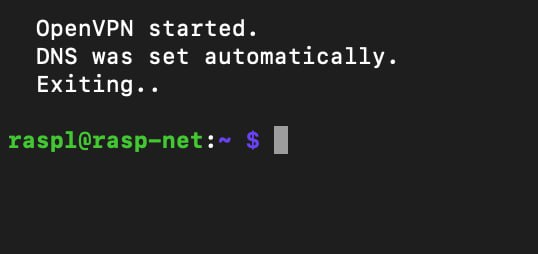
This means everything is fine and the VPN is working.
Viewing the status and exiting the program
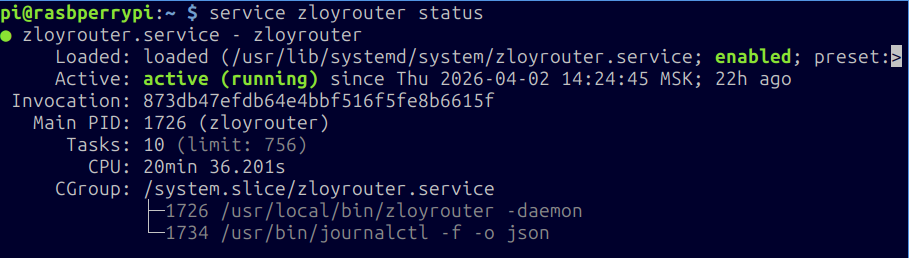
ZloyRouter launches and runs as a Linux system service.
When you exit the configurator (button q), ZloyRouter will continue to run.
You can view the service status via the command sudo service zloyrouter status
In the event of any problems working with the program, most of them are resolved by rebooting the Raspberry Pi via sudo reboot.
Diagnostics and Troubleshooting
Startup Error: Can't check daemon state [014]
If upon launching sudo ./zloyrouter the program immediately crashes with an error like:
Can't check daemon state: [014] Can't check /ping via socket /tmp/zloyrouter/daemon.sock this means the router's background process is stuck, or you updated the program without stopping the old version and Wi-Fi sharing. A version or port conflict has occurred.
Solution (follow the steps in order):
Step 1. Force stop all ZloyRouter processes
Run the commands in the terminal:
sudo service zloyrouter stop
sudo killall -9 zloyrouter
Step 2. Delete the "stuck" socket file
Sometimes the system cannot delete the temporary communication file itself. We will delete it manually:
sudo rm -f /tmp/zloyrouter/daemon.sock
Step 3. Ensure you have downloaded the latest version
The error often occurs if the old file was not deleted. Delete the old binary and download the new one strictly according to the Update Instructions.
sudo rm /usr/local/bin/zloyrouter
rm zloyrouter
Next, download the file for your architecture via curl and run chmod +x (see instructions)
Step 4. Full Raspberry Pi reboot (Mandatory!)
Do not start the router immediately. Be sure to clear the RAM and reset the network interfaces by rebooting:
sudo reboot
Step 5. Launch
After rebooting, log in to the Raspberry Pi and start the program as usual:
sudo ./zloyrouter
⚠️ ATTENTION! It is strictly prohibited to reinstall the OS (Raspberry Pi OS) to solve this problem! A complete system reinstall or replacing the flash drive will result in changing your device's unique ID, and your license will be revoked (a
[000] License check errorwill appear). The [014] problem is solved only by the commands above and a reboot.
OpenVPN
If you see the following message when loading the OpenVPN configuration:
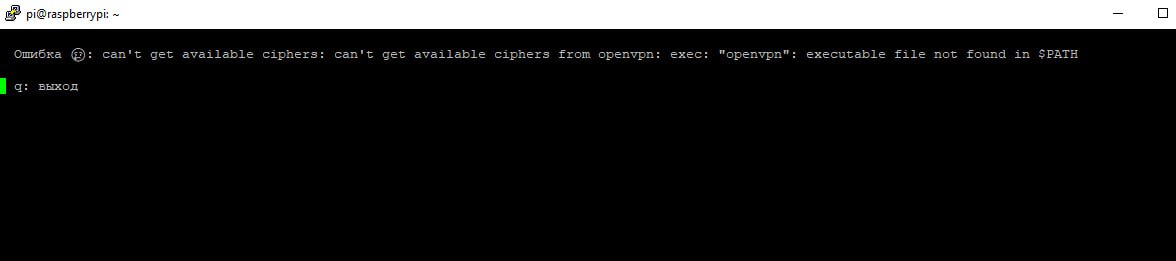
This means that OpenVPN is not installed on your system.
Install it:
sudo apt update
sudo apt install openvpn -y
After installing OpenVPN, repeat the configuration loading operation.
L2 Tunnel
If for some reason the primary L2 tunnel failed to start and you saw an error message - try launching the Backup profile of the L2 tunnel:
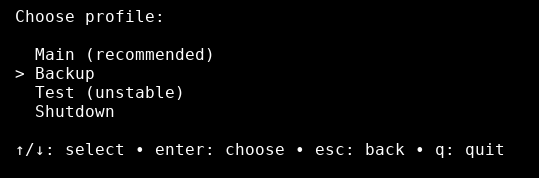
If the backup profile also does not work...
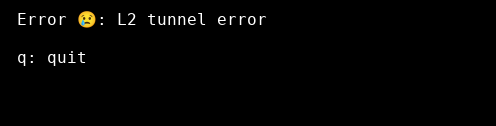
Press ctrl+c, exit the program, collect the logs, and send them to us.
To see how to quickly and correctly collect the software operation logs, refer to the ZloyRouter Diagnostic Log Collection Guide
Sharing Internet to a phone via cable
Why is this needed? - Smartphones constantly scan surrounding Wi-Fi and Bluetooth networks to pinpoint your real location (even if GPS is turned off). Connecting to ZloyRouter via cable allows you to completely disable the phone's wireless modules (switch the phone to Airplane mode), routing all traffic through the gateway and ensuring maximum anonymity from geo-tracking.
Operating diagram:
graph LR
    A[🌐 Internet<br>Router or 4G modem] -->|Incoming traffic| B(🍓 Raspberry Pi <br> ZloyRouter)
    B -->|LAN: RJ45 Cable| C[🔌 Network Adapter<br>Lightning / Type-C]
    C -->|Wired internet only| D[📱 iPhone / Android<br>strictly in Airplane mode]

    classDef zloy fill:#e74c3c,stroke:#c0392b,stroke-width:2px,color:#fff;
    classDef isolated fill:#f39c12,stroke:#d35400,stroke-width:2px,color:#fff;
    class B zloy;
    class D isolated;
Configuring a cable (Ethernet) connection on iPhone
To use ZloyRouter via cable with an iPhone, you need to connect the phone using an appropriate Ethernet adapter (see "Ethernet (RJ45) Network Adapters for Phones and Laptops" in the Hardware section)
Step-by-step setup
- Open Settings → Ethernet (this item will appear automatically when the adapter is connected).
- Go to the Configure IP section and select DHCP (Automatic).
- Alternative option: If DHCP is disabled on your Raspberry Pi, select Manual and set the IP address, subnet mask, gateway, and DNS (according to your network settings).
Possible problems and solutions
If the connection did not work (most common situations):
* "Accessory consumes too much power" message
Lightning adapters require additional power. You will need to plug a power cable into the adapter itself (or use an actively powered USB-hub). More details from Apple Support.
* IP address like 169.254.x.x
This means that the Raspberry Pi did not issue a DHCP address. In this case, there is nothing left to configure on the iPhone itself — you need to check the network and DHCP server settings on the Raspberry Pi side.
Configuring a cable (Ethernet) connection on Android
To work via cable, you will need a USB Type-C to Ethernet adapter (or Micro-USB OTG with an Ethernet adapter for older devices). It is advisable to choose adapters with an additional Type-C port for parallel smartphone charging (Power Delivery) so that the phone does not discharge during operation.
Step-by-step setup
- Switch the phone to Airplane mode and ensure that Wi-Fi and Bluetooth are completely turned off in the settings (to prevent geolocation leaks).
- Connect the adapter with the cable from ZloyRouter to the smartphone.
- Open Settings → Network & internet (or Connections on Samsung) → Ethernet. (This menu item usually appears only after physically connecting the adapter).
- By default, the system will automatically receive settings from the router (DHCP).
- Alternative option: If DHCP on the Raspberry Pi is disabled, tap the adapter name in the Ethernet menu, select Static IP, and manually enter the IP address, mask, gateway, and DNS.
Possible problems and solutions
- The "Ethernet" item does not appear in settings
Unlike iOS, Ethernet support on Android depends on the specific smartphone manufacturer and firmware. Some brands (e.g., budget Xiaomi/Redmi models) might cut Ethernet drivers from the system kernel. If the menu does not appear, your smartphone does not hardware- or software-support a cable connection. - The smartphone discharges quickly / Network disconnects
The network adapter is powered by the smartphone's battery. If the adapter consumes too much power, the system might disconnect it to save energy. Use a Type-C hub with the ability to connect a charger (PD Passthrough). - IP address is not issued (Network without internet access)
Ensure that the DHCP server is working correctly on the Raspberry Pi, or set a static IP address manually.
Verified adapter chips for Android:
As a rule, adapters based on Realtek (RTL8153 / RTL8152) and ASIX (AX88179) chips work perfectly on Android. Most adapters from Ugreen, Baseus, and TP-Link work on a Plug-and-Play basis.