Troubleshooting
## Solving common problems (Troubleshooting)
Internet lost on the Raspberry Pi or DNS resolving is not working (Error "no working DNS servers found")
If you incorrectly terminated the proxy or VPN (for example, just closed the terminal), the system DNS file might break. To restore the Internet, run the command:
sudo sh -c "echo nameserver 8.8.8.8 /etc/resolv.conf"
ZloyRouter says the tunnel is not found, or throws proxy errors
Sometimes the L2 tunnel hangs in the system. To forcefully delete it and reset the network interfaces without rebooting the entire Raspberry Pi, run:
sudo killall -9 zloyrouter
sudo ip tuntap del dev tun0 mode tun
After that, start the router again.
The Raspberry Pi freezes when activating the proxy or Wi-Fi / LAN disconnects
In 90% of cases, the problem lies in a lack of power (especially relevant for Raspberry Pi 4 and 5). Make sure your power supply provides a true 5V / 3A (or 5A for RPi 5).
To check if the system detects voltage drops, run the command:
sudo dmesg | grep -i voltage
If the command outputs lines with "Undervoltage", you need to replace the power supply or cable.
Error 😢: can't get available ciphers: can't get available ciphers from openvp
Occurs when starting the VPN. It means that OpenVPN is not installed on your Raspberry Pi.
Install it using the following commands:
1. sudo apt update
2. sudo apt install openvpn -y
After that, try starting the VPN in ZloyRouter again.
Could not resolve hostname raspberrypi.local: No such host is known.
Windows could not find the Raspberrypi by name, so you need to connect via its IP address. The computer usually assigns the Raspberrypi an address starting with 192.168.137...
Do the following:
In the command line ( PuTTY or PowerShell), enter the command:
arp -a
A large list will appear. Find the block that says Interface: 192.168.137.1 (or similar).
Right below it, there will be a list of addresses. Find the address there that starts with 192.168.137... (for example, 192.168.137.149, 192.168.137.52, etc. — importantly, not the one that ends with .255).
Now try to connect using this IP. Enter:
ssh pi@192.168.137.149
(Just replace 149 with the numbers you found for yourself).
If there are multiple such addresses in the list, try them one by one, one of them is definitely the Raspberry Pi!
Locale error (repeated multiple times)
When entering any command, you see the text: -bash: warning: setlocale: LC_CTYPE: cannot change locale (UTF-8): No such file or directory
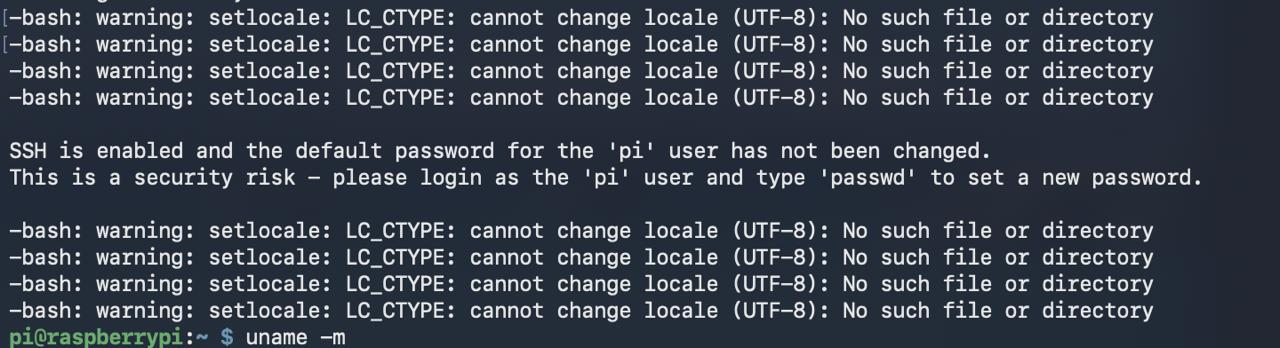
Why does it say this:
This message indicates a problem with language or regional settings (locale). Most likely, you are connecting to the Raspberry Pi via SSH from another computer (for example, a Mac). When connecting, your computer automatically transmits its encoding settings (in this case, simply UTF-8), but the Raspberry Pi does not understand this abbreviated format — it needs the full format, for example en_US.UTF-8 (English) or ru_RU.UTF-8 (Russian). Since it does not find a file simply named "UTF-8", it throws an error.
How to fix it:
The easiest way for the Raspberry Pi is to generate the correct locales through the built-in settings menu.
1. Enter the command:
2. In the blue menu that appears, use the arrows to select 5 Localisation Options and press Enter.
3. Select L1 Locale.
4. Scroll down the list (use Page Down or the down arrow). Find and check with the Spacebar
en_US.UTF-8 UTF-8 (and, if Russian is needed, ru_RU.UTF-8 UTF-8). An asterisk * should appear next to them.5. Press Tab to select
<Ok> and press Enter.6. On the next screen, you will be asked to choose the default locale. Select
en_US.UTF-8 (or C.UTF-8).7. Wait for the generation to finish and exit the menu (
<Finish>).The next time you connect via SSH, these errors will disappear.
Password security warning
Text in the console or when logging into the Raspberry OS desktop: SSH is enabled and the default password for the 'pi' user has not been changed. This is a security risk...
Why does it say this:
The Raspberry Pi is warning you that remote access (SSH) is enabled, but the password for the pi user remains the standard one (the default password is raspberry).
This is a huge security hole: if your Raspberry Pi is connected to a network (especially to the Internet), anyone can try to log into it using this standard login and password.
How to fix it:
The system itself suggests the solution in the second line: "please login as the 'pi' user and type 'passwd' to set a new password".
1. Simply enter in the command line:
passwd
2. Press Enter.
3. First, the system will ask you to enter the current password (enter raspberry and press Enter. When entering the password, the characters are not displayed on the screen — this is normal).
4. Then enter the new password you made up twice.
Error: no available WiFi device found, try to disconnect from WiFi
Cause: You are trying to start a Wi-Fi Hotspot, but the Raspberry Pi's Wi-Fi module is busy — it has connected to your home network (you forgot to erase the Wi-Fi settings when writing the image to the flash drive).
Solution: You need to forcefully delete the home network from the Raspberry Pi's memory.
1. Enter the command to see the list of saved networks:
sudo nmcli connection show
2. In the list that appears, find the line that says wifi. Remember the name of this network in the NAME column (for example, netplan-wlan0-MyHomeNetwork).
3. Delete this network with the command:
sudo nmcli connection delete "YOUR_NETWORK_NAME"
(For example: sudo nmcli connection delete "netplan-wlan0-MyHomeNetwork")
4. After successful deletion, go to sudo ./zloyrouter again and turn on the Wi-Fi hotspot.
Error: [000] License server response timeout
This error means that your Raspberry Pi cannot contact the license verification server. There are two main causes for this:
Cause 1: The Raspberry Pi has no Internet access (most common)
Solution:
1. Check if the LAN cable is firmly plugged into the Raspberry Pi and the router.
2. Check for Internet access on the Raspberry Pi using the command ping 8.8.8.8. If there is no ping, reboot your home router.
Cause 2: A mandatory ZloyRouter update was released
If we release a critical update (the security architecture or protocols change), older versions of the program may be programmatically disconnected from the licensing server.
Solution:
Go to our official Telegram channel https://t.me/ZloyTeamNews and check the latest posts. If you see a publication with text like «🚨 IMPORTANT MANDATORY UPDATE», then your version is outdated. Just update ZloyRouter according to the instructions, and the license will successfully verify again.
🔴 Error: Connection refused when trying to connect via SSH (Connection refused)
Cause: If the Raspberry Pi can be pinged, but trying to connect via PuTTY or Terminal throws Connection refused, it means that the SSH server is disabled on the Raspberry Pi. You forgot to check the "Enable SSH" box when writing the flash drive.
Solution (How to fix without reinstalling):
1. Turn off the Raspberry Pi (disconnect the power) and remove the SD card.
2. Insert the SD card into your computer (via a card reader).
3. A small partition of the memory card called boot (or bootfs) will open on your computer.
4. Go into this folder and create a regular empty text file there.
5. Rename this file so that it is named simply ssh (in lowercase letters, without the .txt extension at the end!).
(In Windows, you need to enable the display of file extensions in the folder settings to do this).
6. Eject the flash drive, insert it into the Raspberry Pi, and turn it on. Upon boot, the system will see this file and automatically enable SSH access permanently.
🔴 Error: Permission denied, please try again (Access denied, please try again) when trying to connect to the Raspberry Pi via SSH .
This means that you are connecting to the Raspberry Pi, but incorrectly entered the username or password.